


What do you get?

Attract more buyers at the right time

Increase the average order value

Sell out stocks

Reduce shipping costs by increasing the number of items in each order
Types of discounts
With Discounts Manager, you can set up 5 types of discounts for buyers:
How does Discounts Manager work?
Go to Discounts Manager
By selecting Marketing tab on Seller Hub
Select a promo type and items
Follow the prompts in the tool
Launch your campaign
Set up the dates and start your campaign
For an item to be eligible for a discount, that should be a Fixed price listing with a Buy It Now option. Items will appear at the advertised price, and the discount will be applied in your buyer’s shopping cart.
How to create and edit your discounts
To create a discount:
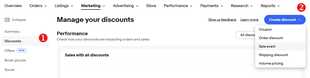
1. In the Seller Hub, click the Marketing tab.
2. From the left menu, select Discounts (1).
3. From the drop-down menu under the Create a discount button (2), select one of five options. By default, the promotion will have a unique name, but you can always change it to find it faster among others.
4. Set the basic conditions of the promotion depending on its type. For example, discounts or free shipping on select items.
5. Select items for this promotion:
- Click Select items if you want to add items manually — up to 500 SKUs or IDs
- Select the Create rules option if you want the items that meet the specified criteria to participate in the promotion: eBay or seller Store category, filter by price, condition, brand, etc. At the same time, you will have the opportunity to set exceptions for items
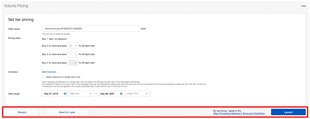
6. Check that all information is correct, set start and end dates for the promotion.
7. Complete the setup by clicking Launch or Save for later.
Effective discounts guide
| Category | Best discount types | Weaker offers | Compelling offers | Helpful conversion hints |
|---|---|---|---|---|
| Electronics |
|
|
|
|
| Fashion, Home & Garden, and Sporting Goods |
|
|
|
|
| Collectibles & Art |
|
|
|
|
| Parts & Accessories |
|
|
|
|
Discounts Dashboard
All promotions — both active and saved for further editing — are displayed in the Discounts tab (1).
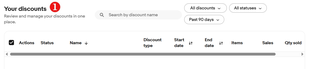
You can use the Action drop-down menu to Pause, Copy or Edit an active promotion, as well as Resume, Delete or Edit a paused promotion, or Delete a completed promotion.
As soon as you pause an active promotion, customers no longer see the discount and it does not apply to the items in the cart. You can resume the promotion at any time by selecting Resume from the Action drop-down menu.
In the Discounts tab, sales data is also provided:
- Base sales — sales of items not included in any active promotions
- Discounts sales — sales of items participating in sales, promotions and other special offers
Finally, you can Download reports to analyze the results of your promotions and figure out what should be adjusted to maximize the impact of future promotions.