





Menambahkan penawaran terbaik (Best Offer) ke listing Anda
Best Offer dari pembeli yang berulang (Repeat buyers)
Membuat counteroffer (tawaran balasan)
Mengirim penawaran kepada pembeli yang tertarik
Mengirim penawaran secara otomatis
Mengirim penawaran khusus menggunakan tombol Reply with offer
Penawaran dan listing dengan jumlah multi-kuantitas
Mengurangi barang yang tidak dibayar untuk penawaran yang diterima
Pertanyaan yang sering diajukan (Frequently Asked Questions)
Best Offer
Saat Anda menambahkan opsi Best Offer ke listing eBay Anda, berarti Anda mengundang pembeli untuk bernegosiasi dengan Anda. Setelah pembeli mengajukan tawaran, Anda dapat memilih untuk menerimanya, menolaknya, atau memberikan counteroffer (tawaran balasan). Jika Anda ingin mendorong pembeli yang tertarik pada produk Anda untuk melakukan pembelian, Anda juga dapat mengirimkan penawaran kepada mereka.
Menambahkan Best Offer pada listing meningkatkan peluang Anda untuk mendapatkan penjualan yang sukses. Anda dapat mengatur preferensi agar otomatis menerima atau menolak tawaran dengan jumlah tertentu, serta menggunakan fitur counteroffer untuk bernegosiasi dengan calon pembeli.
Offer to buyers
Fitur Offer to buyers, yang dapat diaktifkan di Seller Hub, membantu Anda menargetkan pembeli yang sudah tertarik pada barang Anda sehingga penjualan bisa selesai lebih cepat. Fitur ini hanya tersedia untuk listing harga tetap (Fixed Price).
Jika pembeli sedang melihat barang Anda atau telah memasukkannya ke keranjang belanja dalam lima hari terakhir, Anda dapat mengirimkan pesan dan menawarkan harga yang lebih rendah daripada yang tertera di listing. Kirim penawaran langsung kepada pembeli yang tertarik dan tingkatkan penjualan Anda.
Menambahkan Best Offer ke listing Anda
Ada dua cara untuk menambahkan Best Offer ke listing: formulir listing cepat (quick listing form) dan alat listing lanjutan (advanced listing tool).
Menambahkan Best Offer dengan formulir listing cepat
- Listing-kan barang Anda dengan format harga tetap (fixed price).
- Pilih Change listing preferences di bagian atas halaman dan pastikan kotak centang Enable more options aktif.
- Di bawah Pricing, pilih More options, lalu Allow offers.
- Masukkan jumlah minimum yang bersedia Anda terima.
- Selesaikan proses listing Anda.
Menambahkan Best Offer dengan alat listing lanjutan
- Buka bagian Pricing.
- Set Allow offers ke posisi on.
- Tambahkan Minimum offer amount dan/atau Auto accept amount (opsional).
Catatan: Offers tidak tersedia jika listing Anda adalah lelang dengan harga Buy It Now.
Opsi Best Offer tidak dapat ditambahkan ke listing lelang (auction-style) di kategori berikut: ponsel, otomotif, properti, tablet, dan tiket.
Jika Anda telah menambahkan Best Offer ke listing lelang, harap ingat:
- Tawaran dan counteroffer yang ada akan otomatis ditolak, dan pembeli tidak akan dapat membuat tawaran tambahan untuk barang Anda.
- Jika Anda menerima tawaran yang lebih tinggi dari penawaran saat ini, pembeli yang membuat tawaran tersebut harus mengajukan bid, karena tawaran mereka akan otomatis ditolak ketika bid pertama dibuat.
- Jika penawar (bidder) membatalkan bid mereka, fitur Best Offer akan diaktifkan kembali.
Ringkasan
- Tambahkan Best Offer pada listing harga tetap (Fixed Price).
- Gunakan formulir listing cepat atau alat listing lanjutan.
- Tetapkan jumlah minimum tawaran jika diperlukan.
- Best Offer tidak tersedia untuk listing lelang di kategori tertentu.
Menerima Best Offer
Saat Anda menerima Best Offer, eBay akan mengirimkan email pemberitahuan kepada Anda. Semua tawaran juga ditampilkan di bagian Active pada My eBay dan di Seller Hub dalam daftar Active listings with offers.
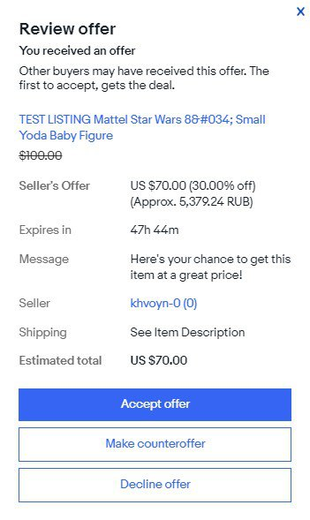
Lihat pengalaman pembeli (1) dan penjual (2):
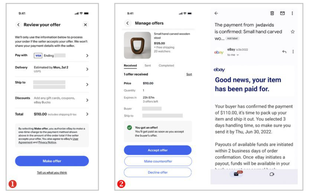
Setelah menerima tawaran, Anda memiliki waktu 24 jam untuk memilih cara merespons:
- Menerima Best Offer dan mengakhiri listing
- Memberikan Counteroffer (tawaran balasan)
- Membiarkan tawaran kadaluarsa ini akan terjadi secara otomatis setelah 24 jam atau saat listing berakhir, tergantung mana yang lebih dulu
- Menolak tawaran
Dalam banyak kasus, saat menggunakan opsi Best Offer di sebuah listing, pembeli diharuskan melakukan pembayaran segera. Namun, beberapa pembeli mungkin diminta untuk mengonfirmasi detail pembayaran dan pengiriman saat membuat tawaran.
Jika Anda ingin menerima tawaran dari semua pembeli tanpa pembayaran langsung, buka Buyer Management settings dan hilangkan tanda centang pada kotak Buyer Payment Requirements.
Ringkasan
- Lihat Best Offers di My eBay atau Seller Hub
- Respon dalam 24 jam: terima, balas dengan tawaran, biarkan kadaluarsa, atau tolak
- Pembayaran langsung biasanya diperlukan, tetapi Anda dapat mengatur agar tawaran diterima tanpa pembayaran langsung
Best Offer dari Pembeli Tetap
Pembeli tetap (repeat buyers) lebih berharga dibandingkan pembeli lainnya. Mereka kembali untuk berinteraksi dan membelanjakan lebih banyak di toko penjual. Ketika penjual mengetahui bahwa pembeli adalah pelanggan tetap, hal ini memberikan kesempatan bagi penjual untuk mengambil keputusan yang lebih tepat saat merespons sebuah tawaran atau pesan.
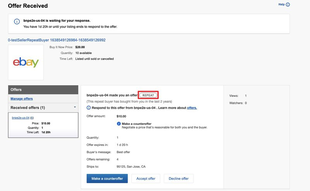
Itulah sebabnya eBay memberi tanda khusus pada pembeli tetap: jika Best Offer berasal dari pembeli tetap, Anda akan melihat indikator di sebelah nama mereka. Fitur ini tersedia di semua situs eBay internasional.
Pembeli tetap adalah seseorang yang telah melakukan lebih dari satu pesanan dari seorang penjual, termasuk semua pembeli dalam jangka waktu 2 tahun dari tanggal saat ini.
Ringkasan
- Prioritaskan tawaran dari pembeli tetap
- Pembeli tetap ditandai dengan indikator
Membuat Counteroffer
Saat Anda membuat counteroffer, tawaran yang Anda berikan harus lebih rendah dari harga Buy It Now, tetapi lebih tinggi dari tawaran yang Anda terima.
Anda dapat merespons langsung kepada calon pembeli melalui pesan yang dikirim eBay untuk memberi tahu Anda tentang Best Offer dari pembeli.
Anda mungkin menerima tawaran dari beberapa pembeli, dan memberikan counteroffer kepada masing-masing pembeli tidak masalah. Setiap counteroffer berlaku selama 24 jam, dan siapa pun yang pertama menerima counteroffer Anda akan menjadi pemenang.
Untuk listing dengan jumlah banyak (multiple quantity listing), pembeli dapat menerima counteroffer sampai semua barang terjual atau counteroffer kedaluwarsa (mana yang lebih dulu).
Pembeli dapat merespons counteroffer Anda
Penjual dan pembeli dapat saling mengirim maksimum 5 counteroffer. Jika pembeli mengirim counteroffer baru, Anda akan menerima email dan pesan di My eBay. Jika aplikasi eBay terpasang dan notifikasi diaktifkan, Anda juga akan menerima pemberitahuan di ponsel. Klik Respond now pada pesan tersebut untuk melihat counteroffer, lalu pilih Accept offer, Decline offer, atau Make counteroffer.
Penjual maupun pembeli dapat menarik tawaran atau counteroffer jika berubah pikiran atau salah memasukkan jumlah. Untuk menarik counteroffer, buka listing, klik Manage offers, pilih counteroffer, lalu klik tombol Retract.
Anda dapat memantau dan mengelola counteroffer di Seller Hub Active atau My eBay active.
Anda juga dapat mengirim tawaran kepada pembeli yang tertarik pada barang Anda. Pelajari lebih lanjut tentang Offers to buyers and dan perbedaannya dengan Best Offers
Respon Otomatis terhadap Best Offer
Jika Anda mengatur respon otomatis di listing, eBay dapat menerima atau menolak Best Offer secara otomatis berdasarkan batas harga yang Anda tentukan. Pembeli tidak akan mengetahui batas harga tersebut, tetapi batas atas (upper limit) harus di bawah harga Buy It Now.
Cara kerjanya:
- Jika tawaran ≥ batas atas → otomatis diterima, dan Anda serta pembeli akan mendapat email konfirmasi.
- Jika tawaran ≤ batas bawah → otomatis ditolak, dan pembeli akan diberi tahu. Mereka dapat mengirim tawaran baru atau Anda bisa mengirim counteroffer. (Pembeli dapat mengirim hingga 3 tawaran per barang di sebagian besar kategori.)
- Jika tawaran berada di antara batas harga → Anda akan menerima pesan untuk memutuskan respon sendiri.
Respon otomatis tidak dapat digunakan jika:
- Barang sedang diskon melalui fitur Sale event di Discounts Manager
- Pembeli menambahkan syarat tambahan pada tawaran yang harus Anda tinjau terlebih dahulu.
- Opsi ini tidak muncul saat membuat listing (tidak semua kategori mendukung).
Menerima Best Offer dari Pembeli yang Mengklik Iklan (Promoted Listing)
Jika Anda menerima Best Offer dari pembeli yang mengklik barang Anda melalui strategi promosi umum dalam 30 hari terakhir, Anda akan dikenakan biaya iklan berdasarkan total akhir penjualan (termasuk harga barang, ongkir, pajak, dan biaya lain yang berlaku).
Jika tarif iklan (ad rate) yang ditampilkan untuk Best Offer bukan tarif terbaru Anda, bisa jadi pembeli mengklik iklan saat tarif sebelumnya masih berlaku.
Contoh: 30 hari lalu, pembeli mengklik iklan dengan tarif iklan 15%. Setelah itu, Anda mengubah tarif menjadi 8%. Saat menerima Best Offer dari pembeli tersebut, tarif yang muncul tetap 15%, karena itulah tarif saat pembeli pertama kali mengklik iklan Anda.
Mungkin ada beberapa keadaan di mana tarif iklan yang ditampilkan tidak berlaku, termasuk:
- Pembeli mengklik iklan lagi sebelum membeli atau memberikan tawaran lain untuk barang yang sama → tarif iklan terbaru sebelum penjualan yang digunakan.
- Iklan diklik sebelum ada perubahan tarif iklan.
- Barang adalah Halo Item → tarif didasarkan pada pengaturan saat penjualan.
- Pembeli membeli barang promosi Anda yang berbeda.
- Pelajari lebih lanjut tentang Promoted Listings.
Listing dengan Jumlah Banyak
Jika Anda menjual 2 atau lebih barang identik dalam satu listing, maka listing akan segera ditutup dan semua tawaran yang tersisa otomatis dibatalkan begitu semua barang terjual—baik melalui Buy It Now, Best Offer, atau dengan mengirimkan penawaran langsung kepada pembeli.
Ringkasan
- Counteroffer harus lebih tinggi dari tawaran pembeli tetapi lebih rendah dari harga Buy It Now.
- Anda bisa mengirim counteroffer ke beberapa pembeli; yang pertama menerima adalah pemenangnya.
- Masing-masing pihak dapat mengirim hingga 5 counteroffer dalam satu negosiasi.
- Gunakan respon otomatis untuk menerima atau menolak tawaran dengan cepat.
Mengirim Penawaran kepada Pembeli yang Berminat
Jika pembeli menunjukkan minat pada barang Anda (misalnya dengan melihat atau menambahkannya ke keranjang), Anda dapat mengirimkan penawaran khusus. Jika pembeli menerima, barang tetap tersedia hingga pembeli berhasil menyelesaikan pembayaran.
Cara Mengirim penawaran ke pembeli
To send an Offer to buyers:
1. Buka My eBay Selling atau Seller Hub Active.
2. Pilih Send offer di samping barang yang memenuhi syarat (atau Eligible to send offers jika menggunakan Seller Hub).
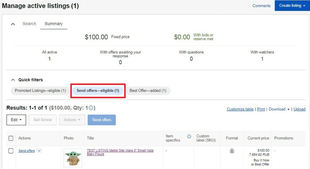
- Tidak semua listing memenuhi syarat. Kelayakan ditentukan oleh beberapa faktor, termasuk usia listing, format listing, dan aturan jumlah penawaran yang dapat diterima pembeli.
- Barang harus berada di keranjang pembeli minimal 2 hari sebelum Anda bisa mengirim penawaran.
3. Pilih harga penawaran.
- The amount must be at least 5% less than the Buy It Now price
- Shipping will not be included in this price
4. Di Seller Hub, jika Anda tidak ingin pembeli mengajukan counteroffer, pilih Don't allow counteroffers.
5. Tambahkan pesan kepada pembeli..
6. Klik Send offer to buyers.
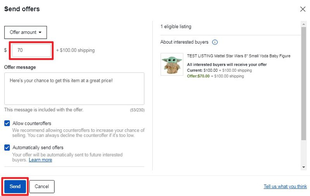
Pembeli akan menerima pesan penawaran Anda.
Mengirim Penawaran Secara Massal
Anda juga dapat mengirim penawaran untuk beberapa listing sekaligus menggunakan Seller Hub. Berikut langkah langkahnya:
1. Buka Seller Hub Active.
2. Pilih Send Offers – Eligible untuk melihat listing yang memenuhi syarat.
3. Pilih listing yang ingin Anda kirimkan penawarannya, lalu klik Send Offers.
4. Pilih diskon persentase (Percent off), misalnya 10%. Diskon ini berlaku untuk semua listing yang Anda pilih.
- Diskon bertingkat (tiered offer) minimal 5% lebih rendah dari harga Buy It Now.
- Persentase diskon minimum tertinggi berdasarkan harga Buy It Now dalam listing yang Anda pilih akan diterapkan.
5. Tambahkan pesan
6. Klik Send offers
Penawaran akan dikirim ke 30 pembeli paling baru yang tertarik (yang watching atau menambahkan barang ke keranjang). Setiap penawaran berlaku selama 96 jam* (untuk ebay.com dan ebay.co.uk) atau 48 jam di situs eBay internasional lainnya, atau hingga listing terjual, mana yang lebih dulu. Untuk listing 1 barang, pembeli pertama yang menerima dan membayar akan mendapatkan barangnya. Untuk listing multi-kuantitas, pembeli dapat terus menggunakan penawaran hingga semua barang habis atau penawaran kedaluwarsa.
* Hanya berlaku untuk ebay.com dan ebay.co.uk. Penawaran berlaku 48 jam di situs internasional lainnyaMengirim Penawaran Massal di Aplikasi eBay
- Buka halaman Active di tab Selling dalam aplikasi eBay.
Penawaran dapat dikirim jika listing memiliki 1 atau lebih pembeli yang memenuhi syarat. Jika ada lebih dari satu listing yang memenuhi syarat, akan muncul filter cepat Send Offers – Eligible. - Terapkan filter ini untuk melihat listing dan mengirim penawaran.
Jika listing memiliki harga berbeda, persentase diskon minimum tertinggi yang berlaku akan diterapkan.
Penawaran akan dikirim ke 30 pembeli paling baru yang tertarik (yang watching atau menambahkan barang ke keranjang). Setiap penawaran berlaku selama 96 jam* (untuk ebay.com dan ebay.co.uk) atau 48 jam di situs eBay internasional lainnya, atau hingga listing terjual, mana yang lebih dulu. Untuk listing 1 barang, pembeli pertama yang menerima dan membayar akan mendapatkan barangnya. Untuk listing multi-kuantitas, pembeli dapat terus menggunakan penawaran hingga semua barang habis atau penawaran kedaluwarsa.
* Hanya berlaku untuk ebay.com dan ebay.co.uk. Penawaran berlaku 48 jam di situs internasional lainnyaAnda dapat menghemat waktu dengan mengaktifkan penawaran otomatis kepada pembeli yang tertarik. Setelah mengirim penawaran, Anda dapat mengubah pengaturannya di Offer Settings dalam Active Listings di Seller Hub.
Mengirim Kupon kepada Pembeli yang Tertarik
Penjual dengan toko (Store sellers) dapat mengirim kupon kepada pembeli setelah penawaran mereka diterima atau kedaluwarsa. Kupon tidak dapat dikirim jika pembeli menolak penawaran. Kupon dapat digunakan pada barang apa pun yang telah Anda masukkan ke dalam promosi kupon.
- Menampilkan jumlah pembeli yang memenuhi syarat untuk menerima kupon.
- Pembeli dapat menggunakan kupon untuk barang apa pun yang telah Anda masukkan ke dalam diskon kupon.
- Kupon akan dikirim ke pesan eBay pembeli.
- Fitur ini tersedia untuk pengiriman tunggal maupun massal.
Mengirim kupon:
1. Buka opsi Send offers di Seller Hub dan tambahkan kupon pada penawaran Anda.
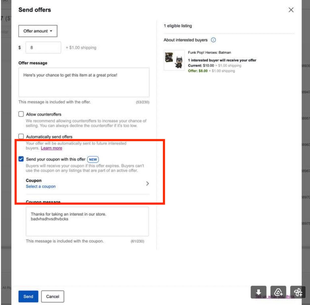
2. Pilih salah satu kupon yang sudah Anda buat sebelumnya atau buat kupon baru di tab Marketing.
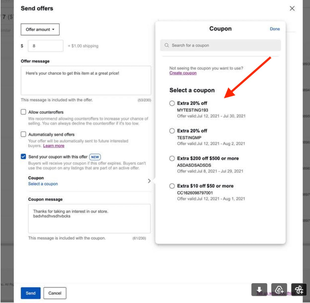
Setelah mengisi detail Penawaran dan Kupon, Anda dapat:
- Mengirim penawaran kepada pembeli yang tertarik secara real-time.
Memicu proses kelayakan kupon untuk pembeli yang tertarik tersebut.
Ringkasan
- Kirim penawaran khusus kepada pembeli yang melihat atau menambahkan barang Anda ke keranjang.
- Penawaran harus setidaknya 5% lebih rendah dari harga Buy It Now.
- Penawaran dapat dikirim secara individu atau massal melalui Seller Hub atau aplikasi eBay.
- Anda juga dapat mengirim kupon setelah penawaran diterima atau kedaluwarsa.
Mengirim penawaran secara otomatis
Anda dapat menghemat waktu dengan mengaktifkan pengiriman penawaran secara otomatis kepada pembeli yang tertarik dengan listing Anda saat ini. Anda dapat mengubah pengaturan penawaran otomatis Anda dengan membuka listing aktif dan memilih barang apa pun yang memenuhi syarat untuk penawaran, meskipun belum ada pembeli yang berminat. Agar memenuhi syarat, barang tersebut harus berstatus Beli Sekarang dan belum habis terjual.
Mengirim penawaran secara otomatis
Cara mengaktifkan penawaran otomatis
Cara mengelola pengaturan otomatisasi Anda
Cara menonaktifkan penawaran otomatis
Otomatisasi penawaran tingkat lanjut untuk pelanggan Toko
Pelanggan eBay Store kini dapat mengatur penawaran otomatis berbasis aturan. Alih-alih memilih daftar barang secara manual untuk dimasukkan ke dalam penawaran otomatis, Anda dapat memilih kriteria untuk daftar barang mana yang akan disertakan dan menetapkan ketentuan penawaran. eBay akan secara otomatis mengirimkan penawaran Anda kepada pembeli yang memenuhi syarat yang menunjukkan minat pada daftar barang yang sesuai dengan kriteria Anda — termasuk daftar barang baru yang Anda buat. Anda dapat mengatur berapa lama penawaran otomatis Anda akan berjalan, maksimal hingga 150 hari.
Membuat aturan untuk penawaran otomatis
Cara membuat dan mengelola aturan Anda untuk penawaran otomatis
Cara menonaktifkan aturan penawaran otomatis
Ringkasan
- Aktifkan penawaran otomatis untuk menghemat waktu dan menjangkau pembeli yang berminat lebih cepat.
- Pelanggan toko dapat membuat penawaran otomatis berbasis aturan hingga 150 hari.
Mengirim penawaran khusus menggunakan tombol Reply with offer
Jika pembeli mengirimkan pertanyaan tentang barang yang Anda jual dalam format harga tetap (fixed price), Anda dapat membalasnya dengan penawaran khusus. Jika Anda sudah membalas pembeli sebelumnya tetapi ingin membuat penawaran, Anda dapat menemukan tombol Reply with offer di pesan pertama Anda kepada mereka.
Penawaran yang Anda kirim dapat lebih tinggi atau lebih rendah dari harga Buy It Now, dan Anda dapat mengirimkan hingga 3 penawaran kepada pembeli. Setiap penawaran berlaku selama 96 jam* atau hingga barang terjual, mana yang lebih dulu.
* Berlaku untuk ebay.com dan ebay.co.uk saja. Penawaran berlaku 48 jam di situs internasional lainnya.Opsi Reply with offer tersedia untuk semua penjual, baik Anda menggunakan fitur Best Offer di listing atau tidak. Namun, fitur ini tidak tersedia pada listing lelang (auction), item dengan variasi ganda (multi-variation), dan kategori kendaraan bermotor.
- Jika Anda menerima Best Offer pada suatu listing, Anda masih dapat mengirim penawaran khusus kepada pembeli yang mengajukan pertanyaan, selama pembeli belum mengirim Best Offer.
- Jika pembeli sudah mengirim Best Offer, tombol Reply with offer tidak akan tersedia, namun Anda masih bisa mengirim counteroffer.
Cara mengirim penawaran khusus:
- Di My eBay: Messages, temukan pesan dari pembeli dan pilih Reply with offer.
- Ubah harga penawaran sesuai kesepakatan Anda dengan pembeli. Penawaran bisa lebih tinggi atau lebih rendah dari harga barang.
- Ringkas secara jelas detail penawaran di bagian Message to buyer, termasuk biaya pengiriman tambahan (jika ada). Selama detail penawaran terlihat di pesan, transaksi akan dilindungi oleh kebijakan perlindungan penjual eBay..
- Tinjau penawaran dan pilih Send.
Jika ingin melihat penawaran yang sudah Anda kirim dan terima untuk item tertentu, gunakan tautan yang tersedia dan tambahkan nomor item di belakang tanda sama dengan (=).
Apa yang terjadi jika pembeli menerima penawaran khusus:
When a buyer accepts your offer, the item will continue to be available for purchase until the buyer successfully completes payment. You will not be able to change the title, handling time, or the custom label of the order.
Anda tidak akan menerima email saat penawaran diterima, namun setelah pembayaran dilakukan, pesanan akan muncul di bagian Awaiting shipment di My eBay.
Ringkasan
- Send a custom offer directly when replying to a buyer’s question
- Available for fixed-price listings, except auctions, multi-variation items, and motor vehicles
- Summarize all offer details clearly in your message to stay protected under eBay Seller policies
Penawaran dan listing dengan beberapa kuantitas
Jika Anda menjual 2 atau lebih barang yang identik dalam satu listing, Anda dapat mengirim penawaran untuk seluruh barang, sebagian barang, atau hanya satu barang dalam listing tersebut.
Contoh:
Jika Anda menjual 4 unit suatu barang dengan harga Beli Sekarang (Buy It Now) sebesar $25 per unit, Anda dapat mengirim penawaran untuk keempat unit tersebut dengan harga $80. Setelah seluruh barang dalam listing tersebut terjual dan pembayarannya berhasil diselesaikan baik melalui Buy It Now, Best Offer, maupun penawaran yang Anda kirim listing akan langsung ditutup, dan semua penawaran lain yang masih aktif akan dibatalkan secara otomatis.
Ringkasan
- Kirim penawaran untuk semua, sebagian, atau satu barang di listing multi-kuantitas.
- Setelah semua barang terjual dan dibayar, listing akan ditutup dan penawaran dibatalkan.
Mengurangi barang tidak terbayar untuk penawaran yang diterima
Setelah penawaran diterima, biasanya proses transaksi dengan pembeli berjalan lancar. Namun, terkadang pembeli tidak membayar barang yang mereka tawarkan untuk dibeli. Kasus ini disebut barang tidak dibayar. (unpaid items).
Untuk mengurangi jumlah kasus tersebut, semua pembeli diwajibkan menambahkan metode pembayaran saat membuat penawaran di listing Best Offer. Setelah Anda menerima penawaran, eBay akan secara otomatis menagih pembayaran dari metode pembayaran pembeli, sehingga pembeli tidak perlu kembali ke eBay untuk menyelesaikan pembelian. eBay juga menerapkan kebijakan yang lebih ketat termasuk penangguhan akun bagi pengguna yang berulang kali membuat penawaran Best Offer tetapi gagal menyelesaikan pembelian. Listing lelang tidak terpengaruh oleh kebijakan ini.
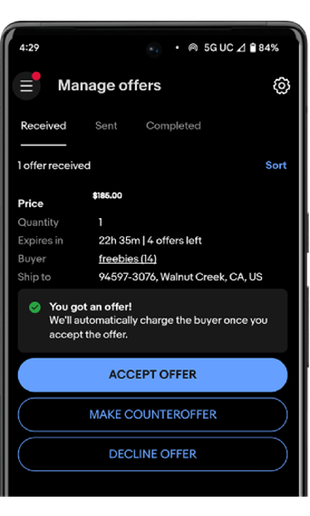
Anda dapat mengatur apakah pembeli diminta info pembayaran untuk listing Best Offer
jika Anda bersedia menerima penawaran dari semua pembeli, Anda dapat mematikan fungsi ini.
Caranya:
- Masuk ke My eBay > tab Account > Selling > Selling preference > Blocked buyer list, lalu klik Edit atau gunakan tautan cepat klik disini.
- Hapus centang kotak di bagian Buyer Payment Requirements.
- Klik Submit.
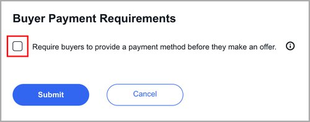
Jika Anda opt-out (menonaktifkan fitur ini), pembeli yang memenuhi syarat tidak akan diminta memberikan informasi pembayaran dan pengiriman di awal saat mengajukan penawaran untuk listing Anda. Pengaturan baru akan berlaku untuk penawaran di masa depan.
eBay menyarankan Anda tetap mengaktifkan fitur ini agar barang Anda segera dibayar dan pesanan cepat diproses.
Jika barang tetap tidak dibayar, Anda harus tetap membatalkan pesanan dan memilih alasan "unpaid item" seperti biasa.
Anda juga bisa mengatur preferensi apakah barang tidak terbayar akan otomatis di batalkan setelah 4 hari.
Tim eBay juga sedang mengembangkan solusi yang tepat untuk mengakomodasi pengiriman gabungan combined shipping tanpa menimbulkan masalah barang tidak terbayar.
Ringkasan
- eBay secara otomatis menagih pembayaran untuk penawaran Best Offer yang diterima guna mengurangi barang tidak terbayar.
- Pembeli harus memberikan info pembayaran saat membuat penawaran, meskipun penjual bisa memilih untuk menonaktifkan fitur ini.
- Penjual dapat memilih agar barang tidak terbayar dibatalkan otomatis setelah 4 hari.