





The Payments tab in Seller Hub helps you keep track of all the payouts you receive from eBay. Here you can track the money you earn on eBay from the moment the buyer's order is confirmed, to when eBay initiates your payout. In the Summary section, you’ll find an overview of your payment information. For more detailed information, other sections include All transactions, Payouts, Reports and Taxes.
The Summary section
In the Summary section of the Payments tab, you'll find an overview of your payout information, including your Available, On hold, and Processing funds, recent transactions and payout settings.
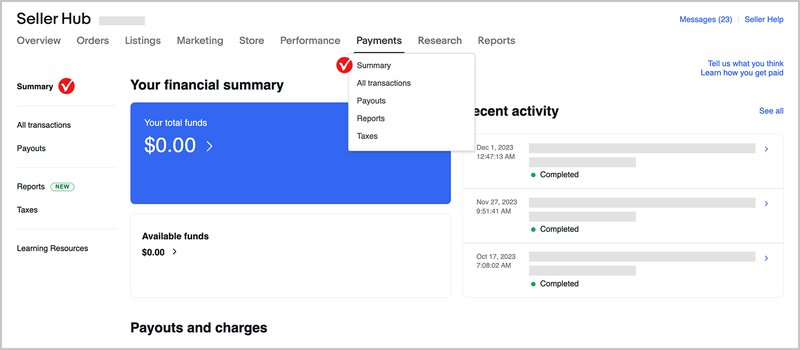
Any transactions processed in a different currency than your payout currency will be converted to your payout currency.
From the Summary section, you can:
- Review your funds: See the status of your Available, On hold, and Processing funds, including the amount in your last payout, and when your next payout is scheduled to be initiated
- Change where or when you get paid: Update the account you receive payouts to, or switch between Daily or Weekly payouts
- Track your transactions: See the recent activity on your account, including information on sales, payouts, shipping labels, and more

The All transactions section
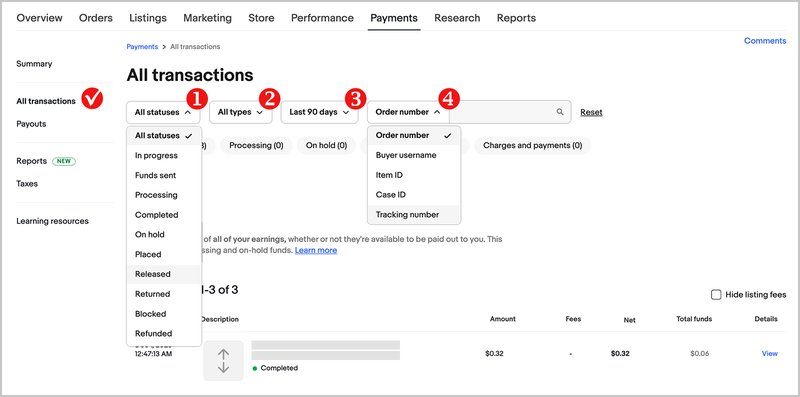
The All transactions section lists all of your transactions related to payments, including information on sales, refunds, claims, disputes, holds, shipping labels, transfers (funds transferring in or out from your on-file payment method), and payouts.
You can filter your transactions by status (1), type (2), dates (3), or by searching for specific order details (4).
Transaction status
The status of each transaction helps you keep track of your sales activity.
Here’s an explanation of each transaction status:
- Available funds: The amount you will be paid in your next payout. Generally, funds that appear Available are the total of all completed transactions, excluding applicable fees and other selling costs, and any transactions on hold
- Your Available funds may change if eBay processes any additional orders or refunds before your next payout. It may also change if you list any new items as the fees will be deducted from this amount
- Processing: Your buyer has paid and the funds are still processing. As long as the order is confirmed, you can send the item
- On hold: The funds on an order are restricted, for example, the order has an open claim against it. You'll see a reason for the hold and an estimated release date, where possible
- eBay will also provide guidance on how to resolve any outstanding issues with a payment to help you get the funds released. You can find more information about why funds may be placed on hold in this payments on hold article
- Completed: The payment has been processed
- Open: Funds are in dispute, and may be placed On hold
- Released: Funds that were on hold have now been released. These funds will now show in Available funds rather than On hold funds
The Payouts section
The Payouts section provides you with an overview of all your payouts. You can see the total amount of each payout, when it was initiated, the account it was sent to, and how many transactions were included. You can also track the status of your payouts, and search for specific payouts by date (1) or by buyer username, order number, or unique payout ID (2).
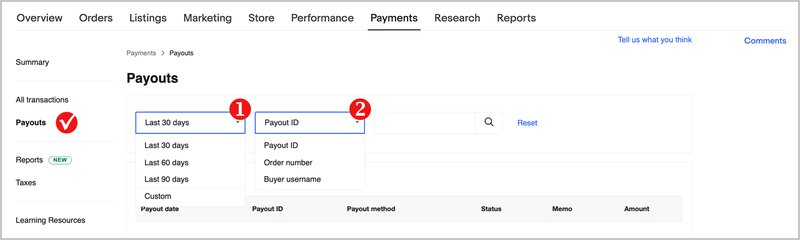
You can select the payout ID to see a more detailed breakdown of each transaction in your payout. This includes the status, amount, and fees associated with each transaction, and a link to the order details.
For a detailed explanation of payout statuses, read how payouts work.
The Reports section
From the Reports section, you can download your Transaction report, Tax invoice, and Financial statement. eBay provides a detailed breakdown of all your selling activity, so you can make sure your internal records are accurate and up to date.
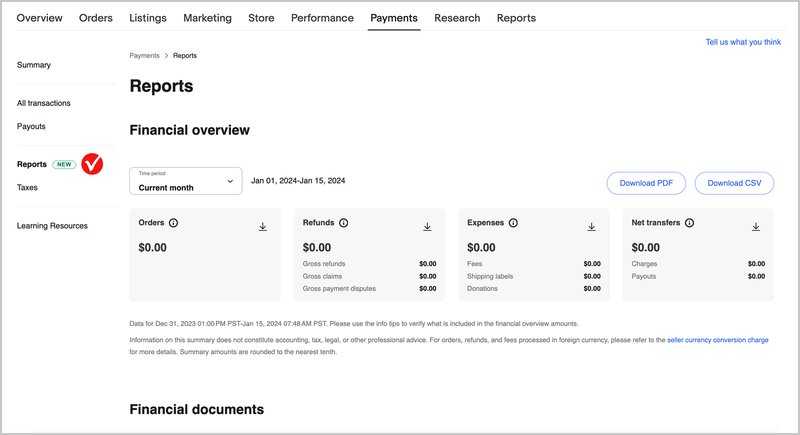
All reports, statements, and invoices will be available to download in Seller Hub. Most files will be in CSV format, which you can open with spreadsheet software such as Microsoft Excel or Google Sheets. However, your financial statement will be in PDF format.
You can use these documents to reconcile your own records with eBay's records. It is recommended to consult your financial advisor for financial reconciling of this information. Below are the documents you can find in Seller Hub, with instructions for downloading each one.
At the top of the section, the Financial overview is available. You can select a time period and download the summary file in both PDF and CSV formats, or download CSV files separately for:
- Orders — your order proceeds before deducting transaction fees
- Refunds — the refunds for returns, cases, cancellations, requests, and disputes, not including fee credits
- Expenses — your total fees and fee credits, as well as the amount you’ve paid for shipping labels
- Net transfers — the payouts sent to you and the amounts collected from you for fees and selling costs
The Financial documents include:
- Transaction reports. These CSV files provide a detailed breakdown of all your account activity for a specific date range. It shows details of your transactions, including transaction date, order number, buyer name, payout date, fees, and other information. You’ll be notified by email when your report is available
- Financial statements. These PDF files provide a summary of your selling activity, including orders, refunds, claims, payment disputes, payouts, and more for a given month
- Tax invoices. These invoices are issued for services rendered and include a PDF summary and a CSV file with a detailed breakdown of all applicable selling costs and fees
