

Overview
The General Product Safety Regulation (GPSR) aims to ensure the sale of safe products to buyers in the European Union (EU) and Northern Ireland (NI). This regulation applies to both new and second-hand products sold in these markets, and it introduces specific requirements for businesses regarding product safety information.
What you need to know
To comply with the GPSR and related regulations, all business sellers listing items for sale in the EU and NI must include the following information:
The product manufacturer's name and contact information
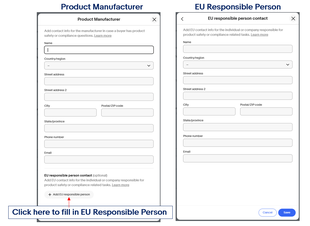
If the manufacturer isn’t located in the EU or NI, you’ll have to indicate an EU-based Responsible Person or entity, along with their name and contact details
Any relevant product information like model number, pictures, and type
Product safety and compliance information like warnings and safety information (which can be included in labels and product manuals) in the local language
The CE marking when required by the related regulations applicable to your product
eBay’s introduced new functionality so it’s easy for you to add this information to your listings, and ensure compliance with the regulation when it takes effect later this year. To add manufacturer and EU Responsible Person details to your listings either individually or in bulk, follow the step-by-step instructions below.
How to add GPSR information on eBay
To add the additional information required by the GPSR to your listings of consumer products on eBay to sell in the EU and NI, you may choose any of the following methods:
*Please note, the screenshots used in the below step-by-step guide for the above methods are taken from www.ebay.com. Hence, the nomenclature or terminology may differ on other eBay websites, however the steps under each method remain the same.Single editing flow
Step 1: Go to Seller Hub → then click Manage Active Listings under the Listing tab.
Step 2: Click Edit next to the listing that you want to edit.
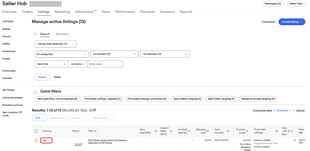
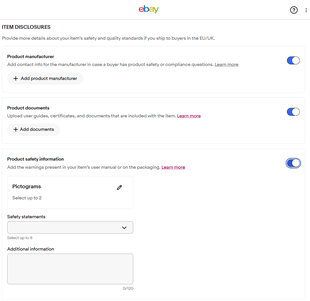
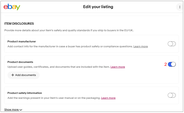
Step 3: Scroll down to the Item disclosures section.
Step 4: Toggle the field where you would like to input the additional information required by the GPSR.
Step 5: Fill in the name, address and contact details of Product Manufacturer or EU Responsible Person.
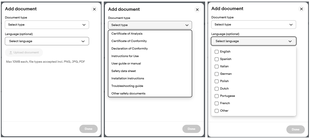
Step 6: Upload Product Documents (e.g. user manual, installation guide, safety data sheet, certificate).
Please note:
- You may upload up to 10 product documents per listing
- Documents can be in .pdf, .jpg or .png format with a maximum file size of 10MB
- You may specify multiple languages for each document
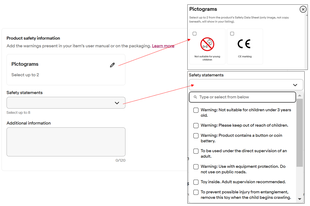
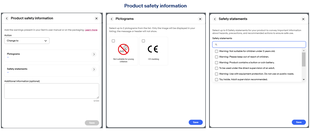
Step 7: Provide Product Safety Information.
- Choose up to 2 Pictograms and/or up to 8 Safety statements
- You can also add the additional information (maximum 120 characters). The text field does not support URLs. If you want to add a link to provide more information about product, you can update your item description
- If more pictograms or statements are required, you can add a picture to your listing to display the associated product safety information (pictograms and statements)
Bulk editing flow via Bulk Editing Tool
Step 1: Go To Seller Hub → then click Manage Active Listings under the Listing tab.
Step 2: Check the checkbox next to the listings.
Step 3: Click on Edit selected.
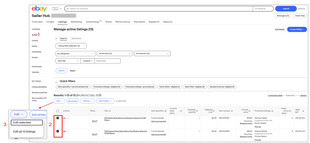
Step 4: Check the checkbox next to the listings.
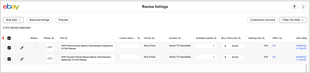
Step 5: Click on Bulk edit.
Step 6: Select Item disclosures.
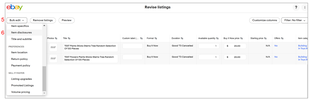
Step 7: Select the GPSR field to input the information.
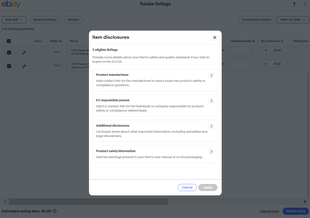
Step 8: Fill in the name, address and contact details of Product Manufacturer or EU Responsible Person.
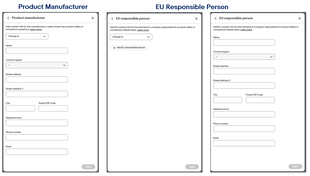
Step 9: Upload Product Documents in a listing using Bulk Editing Tool*.
*Please note that documents must be uploaded individually for each listing, as bulk uploading using the Bulk Editing Tool is not currently supported. However, once you've uploaded the documents for each listing, you can publish them all simultaneously, eliminating the need to handle each listing separately for uploading and publishing.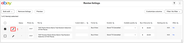
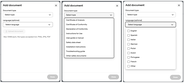
Step 10: Provide Product Safety Information.
Bulk editing flow via Seller Hub Reports (a.k.a. CSV file)
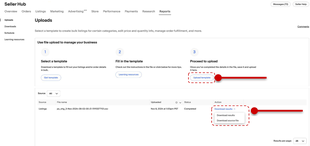
Step 1: Go To Seller Hub → then click Reports → then click Uploads.
Step 2: Under Select a template, click Get template.
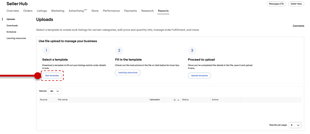
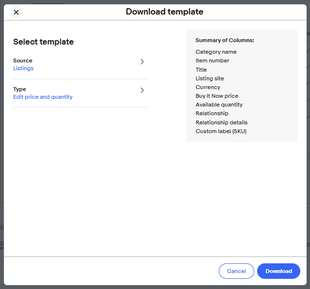
Step 3: For Source: Select template source, choose Listings.
Step 4: For Type: Select template type, choose Edit price and quantity.
Step 5: Click Download.
Step 6: Open the downloaded CSV file.
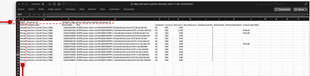

Step 7: Add the fields for additional information required by the GPSR for revision. In row 2, add the field names for the GPSR information you want to add or update.

To add the details of Product Manufacturer
To add EU Responsible Person
To add Product Safety Information
To upload Product Documents
Getting Product Document IDs
Step 8: Upload your updated file. Go to Seller Hub → then click Reports → then Uploads.
Step 9: Under Proceed to upload, click Upload template. Follow the prompts to find and upload your file. Please note that once your upload is complete, you can check the status. If it has failed, you may download the results, which will include warning or error information, or download your original source file.