




Best Offer
When you add the Best Offer option to your eBay listings, you’re inviting buyers to negotiate with you. After a buyer makes an offer, you can choose to accept, decline, or make a counteroffer. If you want to encourage buyers interested in your items to make a purchase, you can also send them offers.
Adding Best Offer to your listing increases your chances of a successful sale. You can set your preferences to automatically accept or decline offers of a certain amount and use the counteroffer feature to negotiate with prospective buyers.
Offer to buyers
The Offer to buyers feature, which can be enabled in Seller Hub, can help you target buyers already interested in your items and to close the sale faster. This feature is available for Fixed price listings only.
If a buyer is watching your item or has placed it in their shopping cart at any point in the previous five days, you can send them a message and offer a lower price than the one on your listing. Send offers directly to interested buyers and increase your sales.
Adding Best Offer to your listings
There are two ways to add Best Offer to your listings: the quick listing form and the advanced listing tool.
Add Best Offer to a listing using the quick listing form
- List your item in the fixed price format.
- Select Change listing preferences at the top of the page and ensure that the box is checked beside Enable more options.
- Under Pricing, select More options, and then Allow offers.
- Enter the minimum amount you're willing to accept.
- Complete the rest of your listing.
Add Best Offer to a listing using the advanced listing tool
- Go to the Pricing section.
- Set Allow offers to on.
- Add a Minimum offer amount and/or an Auto accept amount (optional).
Offers will not be available if your listing is an Auction with a Buy It Now price.
The Best Offer option cannot be added to auction-style listings in the following categories: cell phones, motors, real estate, tablets, and tickets.
If you have added the Best Offer option to an auction-style listing, please remember:
- Current offers and counteroffers will be declined automatically, and buyers won't be able to make any additional offers on your item
- If you had received an offer that was higher than the current bid, the buyer who made the offer will need to place a bid, as their offer was declined when the first bid was placed
- If a bidder retracts their bid, the Best Offer feature will be re-enabled
Summary
- Add Best Offer to fixed price listings
- Use quick listing form or advanced listing tool
- Set a minimum offer amount if needed
- Best Offer not available for Auction listings in certain categories
Accepting Best Offer
When you receive a Best Offer, eBay will send you an email to notify you about it. All the offers are also displayed in My eBay's Active section and in Seller Hub within Active listings with offers.
See the buyer (1) and seller (2) experience:
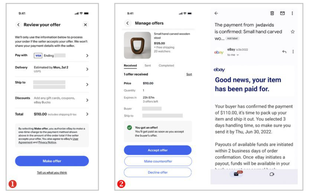
After receiving an offer, you have 24 hours to choose how to respond. You can:
- Accept the Best Offer and end the listing
- Respond with a counteroffer
- Let the offer expire. This will happen automatically after 24 hours or when the listing ends, whichever comes first
- Decline the offer
In most cases, when using the Best Offer option in a listing, buyers are required to make immediate payment. However, some buyers may be asked to confirm their payment and shipping details when they're making an offer.
If you're happy to accept offers from all buyers, without immediate payment, go to your Buyer Management settings and uncheck the box next to Buyer Payment Requirements.
Summary
- View Best Offers in My eBay or Seller Hub
- Respond within 24 hours: accept, counter, let expire, or decline
- Immediate payment is usually required, but you can adjust settings to accept offers without it
Best Offers from Repeat buyers
Repeat buyers are more valuable than any other buyer. They return to engage and spend more on the seller's store. When a seller knows that the buyer is a repeat customer, it provides an opportunity for the seller to make informed decisions in responding to an offer or a message.
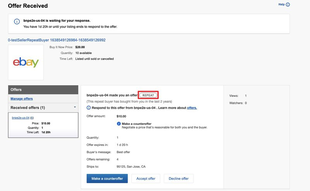
That is why eBay marks repeat buyers with a special indicator: if a Best Offer comes from a repeat buyer, you will see the indicator next to their name. This feature is launched on all international eBay sites.
A Repeat buyer is someone who has purchased more than one order from a seller. This will include all buyers within a period of 2 years from the current date.
Summary
- Prioritize offers from repeat buyers
- Repeat buyers are marked with an indicator
Making a counteroffer
When you make a counteroffer, your response should be lower than the Buy It Now price, but higher than the offer you received.
You can respond directly to the potential buyer from the message eBay sends you letting you know about the buyer's Best Offer.
You might receive offers from multiple buyers, and making counteroffers to each is perfectly fine. Each counteroffer expires after 24 hours, and whoever accepts your counteroffer first wins.
With a multiple quantity listing, buyers can accept counteroffers until all items in the listing are sold or the counteroffers expire (whichever comes first.)
Buyers can respond to your counteroffer
You and the buyer can send a maximum of 5 counteroffers each. If a buyer sends you another counteroffer, you'll receive an email and a message in My eBay. (You'll also receive a notification on your phone, if you've installed the eBay app and enabled notifications.) Select Respond now in this message to view the counteroffer. You can then choose to Accept offer, Decline offer, or Make counteroffer.
Both sellers and buyers can retract their offers and counteroffers, if they have changed their mind or specified the wrong amount by mistake. To retract a counteroffer, go to the listing, click Manage offers, select the counteroffer and click the Retract button.
You can monitor and manage your counteroffers in Seller Hub Active or My eBay active.
You can send your own offers to buyers who are interested in your items. Learn more about Offers to buyers and how they are different from Best Offers.
Automatic responses to Best Offer
If you set up automatic responses in your listing, eBay can accept or decline a Best Offer for you, based on the price limits you select. Buyers won't know your limits, but the upper limit must be below your Buy It Now price.
Here's how automatic responses work:
- When you get an offer at or above your upper limit, we automatically send an email to you and the buyer saying that you've accepted and the buyer should pay
- When you get an offer below your lower limit, we automatically send an email to the buyer declining the offer. The buyer can submit a higher bid or you can send a counteroffer. Buyers can make up to three offers per item in most categories
- When you get an offer somewhere between your price limits, we'll send you a message and you'll have to decide how to respond
You can't use automatic responses when:
- You've put an item on sale using the Sale event feature of Discounts Manager
- The buyer included additional terms in the offer that you'll need to review first
- The option doesn't appear when you are creating your listing (not all categories allow for automatic responses)
Accepting Best Offer when the buyer clicked on your item promoted using a general strategy
If you accept a Best Offer from a buyer who clicked on your item promoted using a general strategy within the last 30 days, you'll be charged an ad fee based on the final total sale amount (including item price, shipping, taxes, and any other applicable fees).
If the ad rate displayed for the Best Offer is not your current ad rate, the buyer may have clicked on your ad within the last 30 days prior to you making ad rate edits.
Example: Within the last 30 days, a buyer clicked on an ad that you created with a 15% ad rate. After this click, you updated the ad rate to 8%. When you receive a Best Offer from that buyer, you see a 15% ad rate displayed instead of your current ad rate of 8%. This is due to your ad rate being 15% at the time the buyer clicked on your ad.
There may be some circumstances where the ad rate displayed isn't applicable, including:
- The buyer clicked on your ad again before purchasing or placed a different offer for the same item. In this case, the ad rate selected closest to the time of sale will be applied
- Your ad was clicked before any ad rate changes were made
- The item being purchased is a Halo Item where the ad rate is based on the settings at the time of the sale
- The buyer purchases a different promoted item of yours
Learn more about Promoted Listings.
Multi-quantity listings
If you're selling 2 or more identical items in a single listing, the listing is immediately closed and any further offers are automatically canceled, as soon as all of the items for a listing have been sold, either through Buy It Now, Best Offer, or by sending offers.
Summary
- Make counteroffers higher than the offer but lower than the Buy It Now price
- You can counter multiple buyers; first to accept wins
- Each side can send up to 5 counteroffers per negotiation
- Set automatic responses to quickly accept or decline offers
Sending offers to interested buyers
If a buyer shows interest in your item (watching your item or adding it to their cart, for example), you can send them special offers. If the buyer accepts, the item will continue to be available for purchase until the buyer successfully completes payment.
Sending an Offer to buyers
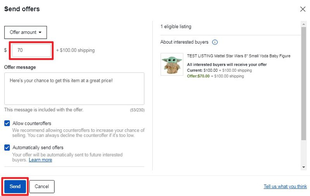
To send an Offer to buyers:
1. Go to My eBay Selling or Seller Hub Active.
2. Select Send offer beside the eligible item (or Eligible to send offers, if you're using Seller Hub).
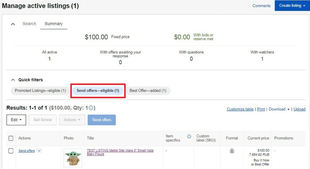
- Not all listings are eligible. Eligibility is determined by a number of factors, including age of listing, listing format, and rules that manage the number of offers buyers receive
- Items must be in the buyer's cart for at least 2 days to send an offer
3. Select an offer price.
- The amount must be at least 5% less than the Buy It Now price
- Shipping will not be included in this price
4. In Seller Hub, if you don't want to let buyers counter your offer, select Don't allow counteroffers.
5. Add a message to buyers.
6. Select Send offer to buyers.
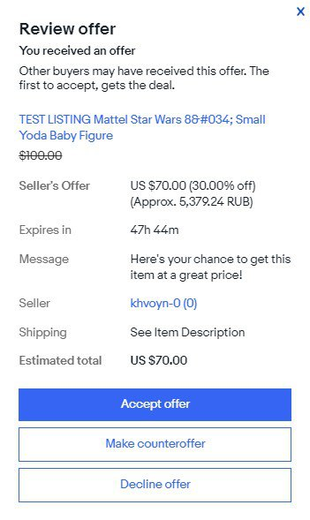
Your buyer will receive your offer message.
Sending offers in bulk
You can also send an offer for multiple listings at once using Seller Hub. Here's how:
1. Go to Seller Hub Active.
2. Select Send Offers - Eligible to see your eligible listings.
3. Select the listings you want to send an offer on and select Send Offers.
4. Select a Percent off discount (e.g 10%). This discount will apply to all the listings you selected.
- With tiered offer discounts, the discount percentage must be at least 5% less than the Buy It Now price
- The highest minimum discount percentage based on the Buy It Now price within the listings you've selected will apply
5. Add a message.
6. Select Send offers.
Offers will be sent to the 30 most recent interested buyers (people watching your items or who have added your items to their cart). Each offer is valid for 96 hours* or until the listing is sold, whichever comes first. With a single item listing, the first buyer to accept and successfully complete payment gets the deal. With a multiple quantity listing, buyers can continue to use the offer until all items in the listing are sold or the offer expires.
* Applicable for ebay.com and ebay.co.uk only. Offers are valid 48 hours on other international sites.
Sending offers in bulk with the eBay app
- Go to the Active page within the Selling tab in the eBay app.
You can send offers when a listing has one or more interested buyers who satisfy a number of conditions. When you have more than one listing that's eligible for offers, you’ll see a quick filter called Send Offers-Eligible. - Apply that filter to see those listings and send your offers.
If the selected listings feature items of different price categories, the highest minimum discount percentage within the listings you’ve selected will apply.
Offers will be sent to the 30 most recent interested buyers (people watching your items or who have added your items to their cart). Each offer is valid for 96 hours* or until the listing is sold, whichever comes first. With a single item listing, the first buyer to accept the offer gets the item. With a multiple quantity listing, buyers can continue to use the offer until all items in the listing are sold or the offer expires.
* Applicable for ebay.com and ebay.co.uk only. Offers are valid 48 hours on other international sites.You can save time by enabling offers to be sent automatically to interested buyers. After you send an offer, you can change the settings for your automatic offers by going to Offer Settings within Active Listings in the Seller Hub.
Sending coupons to interested buyers
Store sellers also have the option to send a coupon to buyers once their offer to them has been accepted or has expired. Coupons cannot be sent if a buyer declines the offer. The coupon can be used on any item that the seller has added to their coupon discount
- The “interested buyers” section will show you how many eligible buyers will receive the coupon
- Buyers can use coupons on any item that the seller has added to their coupon discount
- The coupon will be sent to the buyer's eBay messages
- This feature is available in single and bulk flows
To send a coupon:
1. Open the Send offers option in Seller Hub and add a coupon with your offer.
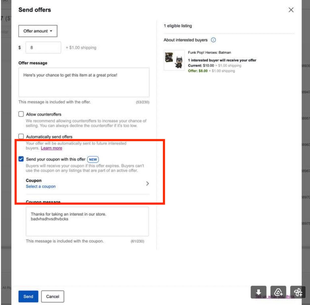
2. Select one of your previously created coupons or create a new coupon in the Marketing tab.
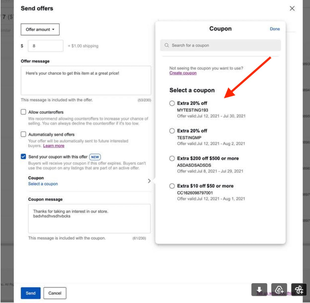
Once you fill out the Offer and Coupon details you can:
- Send the offer to the interested buyers in real time
- Trigger the coupon eligibility process for these interested buyers
Summary
- Send special offers to buyers who watch or add your items to their cart
- Offers must be at least 5% below the Buy It Now price
- Send offers individually or in bulk via Seller Hub or the eBay app
- You can also send coupons after an offer is accepted or expires
Sending offers automatically
You can save time by enabling offers to be sent automatically to buyers interested in your current listings. You can change the settings for your automatic offers by going to active listings and selecting any items that are eligible for offers, even if they don't have interested buyers yet. To be eligible, the items must be Buy-It-Now and not sold out.
Sending offers automatically
How to turn on automated offers
To turn on automated offers:
- Go to Active listings.
- Select eligible items.
- From the Sell it faster dropdown above your items list, select Send offers.
- In the pop-up, toggle on Send automated offers.
How to manage your automation setting
Select View Offer settings to manage your automation setting.
Here you'll be able to:
- Enable or disable offers from being sent automatically
- Adjust the automatic offer amount
- Turn on or off counteroffers
- Change your message
How to turn off automated offers
To turn off automatic seller initiated offers
- Go to Seller Hub.
- In the Search section, select the All statuses dropdown and filter for "With offers sending automatically".
- Select Search.
- Select View offer settings.
- Select the > symbol next to Automatically send offers.
- Set the blue switch next to Automatically send offers to Off.
- Select Done.
- Select Update offer settings.
Advanced offer automation for Store subscribers
eBay Store subscribers can now set up rule-based automatic offers. Instead of manually opting listings into automatic offers, you can select the criteria for what listings to include and set the offer terms. eBay will automatically send your offer to eligible buyers who show an interest in listings that fit your criteria — including any new listings you create. You can set how long your automatic offers will run, for a maximum of 150 days.
Creating rules for automatic offers
How to create and manage your rules for automatic offers
To create and manage your rules for automatic offers:
- Go to Buyer Groups on your Seller Hub Marketing tab.
- Select Send Automatic Offers.
- Choose the inventory to include, set your price range, and name your buyer group.
- Select Update offer settings.
How to turn off an automatic offer rule
To turn off an automatic offer rule:
- Go to Buyer Groups on your Seller Hub Marketing tab.
- Select the rule(s) you’d like to turn off.
- Select Delete.
Summary
- Enable automatic offers to save time and reach interested buyers faster
- Store subscribers can create rule-based automatic offers for up to 150 days
Sending a custom offer using the Reply with offer button
If a buyer sends you a question about an item you have listed in a fixed-priced format, you'll have the option to reply with an offer. If you've already replied to the buyer but wish to make them an offer, you can find the Reply with offer button in your first message to them.
The offer you send can be for more or less than the Buy It Now price, and you can send a buyer up to 3 offers. Each offer is valid for 96 hours* or until the listing is sold, whichever comes first.
* Applicable for ebay.com and ebay.co.uk only. Offers are valid 48 hours on other international sites.
The option to reply with an offer is available to all sellers, whether you use the Best Offer option in your listing or not. However, this feature is unavailable on auction or multi-variation listings, and in the motor vehicle category.
- If you're accepting Best Offers on a listing, you can send custom offers on that same listing to buyers who ask questions, unless the buyer has already sent a Best Offer
- If a buyer sends a Best Offer, the Reply with offer button won't be available, but you can send them a counteroffer
How to send a custom offer
- In My eBay: Messages, find the message from the buyer and select Reply with offer.
- Change the offer price to the amount you and the buyer have discussed. The offer can be higher or lower than the price of the item.
- Clearly summarize the details of your offer in the Message to buyer section, including any additional shipping costs. As long as the offer details are visible within messaging, or the Message to buyer field, the transaction is covered by the eBay Seller protection policy.
- Review the offer and select Send.
If you'd like to see the offers you've sent and accepted for a particular item, you'll need to use the link and add your item number after the equals sign (=).
What happens when a buyer accepts a custom offer
When a buyer accepts your offer, the item will continue to be available for purchase until the buyer successfully completes payment. You will not be able to change the title, handling time, or the custom label of the order.
You won't receive an email when your offer is accepted, but once the buyer pays, you'll find it in the Awaiting shipment section of My eBay.
Summary
- Send a custom offer directly when replying to a buyer’s question
- Available for fixed-price listings, except auctions, multi-variation items, and motor vehicles
- Summarize all offer details clearly in your message to stay protected under eBay Seller policies
Offers and multi-quantity listings
If you're selling 2 or more identical items in a single listing, you can send an offer for all, some, or only one of the items in the listing.
Example:
If you are selling 4 of an item and the Buy It Now price is $25 each, you can send an offer for all 4 items at a price of $80. As soon as all of the items for a listing have been sold and successfully paid for, either through Buy It Now, a Best Offer, or by sending offers, the listing is immediately closed and any further offers are automatically canceled.
Summary
- Send offers for all, some, or one item in a multi-quantity listing
- Once all items are sold and paid for, the listing closes and offers are canceled
Reducing unpaid items for accepted offers
After an offer is accepted, it’s usually a smooth process to complete the transaction with the buyer, but sometimes the buyer may not pay for the item they offered to buy. These are called unpaid items.
To reduce the number of such cases, all buyers are required to add a payment method when making offers on Best Offer listings. After you accept the offer, eBay will collect payment from the buyer’s payment method automatically and buyers won’t have to return to eBay to complete the purchase. eBay also implemented stricter policies — including account suspension — for users who repeatedly make a Best Offer on items but fail to complete the purchase. Auctions aren’t affected.
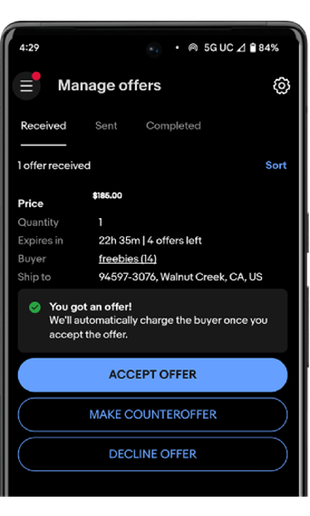
You can control whether eligible buyers are asked for payment information for Best Offer listings. If you are willing to accept offers from all buyers, you can turn this function off.
To do this:
- Go to My eBay > Account tab > Selling > Selling preference > Blocked buyer list, and click Edit, or use the quick link.
- Uncheck the box in the Buyer Payment Requirements section.
- Then click Submit.
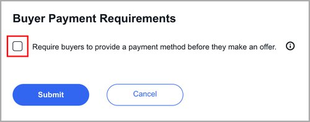
If you opt out, eligible buyers won’t be asked for payment and shipping information upfront when they submit offers for your listings. The new settings will apply to future offers. eBay encourages you to remain opted in so that your items are paid for and orders are created quickly.
If the product is still not paid for, you should continue to cancel the order and share the reason as an “unpaid item” as you do today. You can also specify your preference on whether you want unpaid items to be canceled automatically after four days.
The eBay team is also working on developing the right solution that addresses combined shipping without resulting in unpaid items.
Summary
- eBay collects payment automatically for accepted Best Offers to reduce unpaid items
- Buyers must provide payment info to make an offer, though sellers can opt out
- Sellers can choose whether unpaid items are canceled automatically after 4 days
Frequently asked questions
What is the difference between Offer to buyers and Best Offer?
Best Offer is an option that you select at the time of listing. It lets your buyers initiate price negotiations with you.
The Offer to buyers feature is available to you when your listing is already published.
Best Offer allows the buyer to initiate price negotiations with the seller, while the Offer to buyers feature allows the seller to initiate price negotiations with the buyer.
If you’re accepting Best Offers on a listing, you can still send an offer to eligible buyers if they are watching a listing. This does not apply to the buyer who previously sent you a Best Offer.
Which price will be displayed in the search history?
Once the listing has ended, and regardless of whether the buyer has purchased the item from you at a discounted price or not, we will only show the original Buy It Now price.
Is the item locked while an offer is open? What if someone else wants to buy?
Having an open offer does not prevent others from buying the item. In addition, any offers that haven’t been accepted will be canceled when the item is sold to another buyer or multi-SKU items (listings which contain more than one unit) are sold out.
What are the offer discount minimums in offers to buyers?
With tiered offer discounts, the discount percentage must be at least 5% less than the Buy It Now price.
Can I make an offer on shipping only?
No, sending an offer applies only to the item price and does not include shipping. You can adjust the offer price to offset the postage cost.
I work on a Third-Party Platform, am I eligible?
Yes. See your Third-Party Platform representative for more details.
What happens if I adjust my item's price?
If you change your item's Buy It Now price, eBay will update your automatic offer amount. The discount that was set at the time of first sending the offer will be applied to the new Buy It Now price. If you adjust your Buy It Now price so that it's lower than your current automatic offer amount, eBay will stop sending offers automatically.
What settings are carried over to the offers that are sent automatically?
The offer price, message, duration, and offer settings such as allowing counteroffers.
How many interested buyers receive automatically sent offers?
Offers will be sent to the 30 most recent interested buyers (people watching your items or who have added your items to their cart). Each offer is valid for 96 hours* or until the listing is sold, whichever comes first. With a single item listing, the first buyer to accept and successfully complete payment gets the deal. With a multiple quantity listing, buyers can continue to use the offer until all items in the listing are sold or the offer expires.
* Applicable for ebay.com and ebay.co.uk only. Offers are valid 48 hours on other international sites.