



Overview of Promoted Stores
Promoted Stores is a cost-per-click advertising solution that can attract and motivate interested buyers with eye-catching ads. A Promoted Stores campaign can highlight a coupon or category of items in your store and contains your store’s name, logo, a headline, a link to your store, and several of your top performing listings.
- Effective targeting: Catch the attention of interested buyers shopping for items like yours with engaging and visually appealing ads
- Build your brand: Reach more buyers with access to unique ad placements
- Simple setup: With a simple flow for campaign creation, you can launch your campaign in just a few clicks
What gets promoted?
There are two ways to use Promoted Stores: Category and Coupon.
Category
This is a good option if you’re looking to drive traffic to a specific category of items in your store.
Coupon
Use this if you’re looking to increase awareness of your coded coupons. Advertisements will feature the coupon code.
In both options the advertisement will include:
- Your store name, logo, a headline, a link to your eBay store, and several of your top performing listings
- A landing page specific to your category or coupon code
- Note: When a listing image is clicked, users will be directed to that particular product listing, not the landing page
Where your ads will appear on eBay
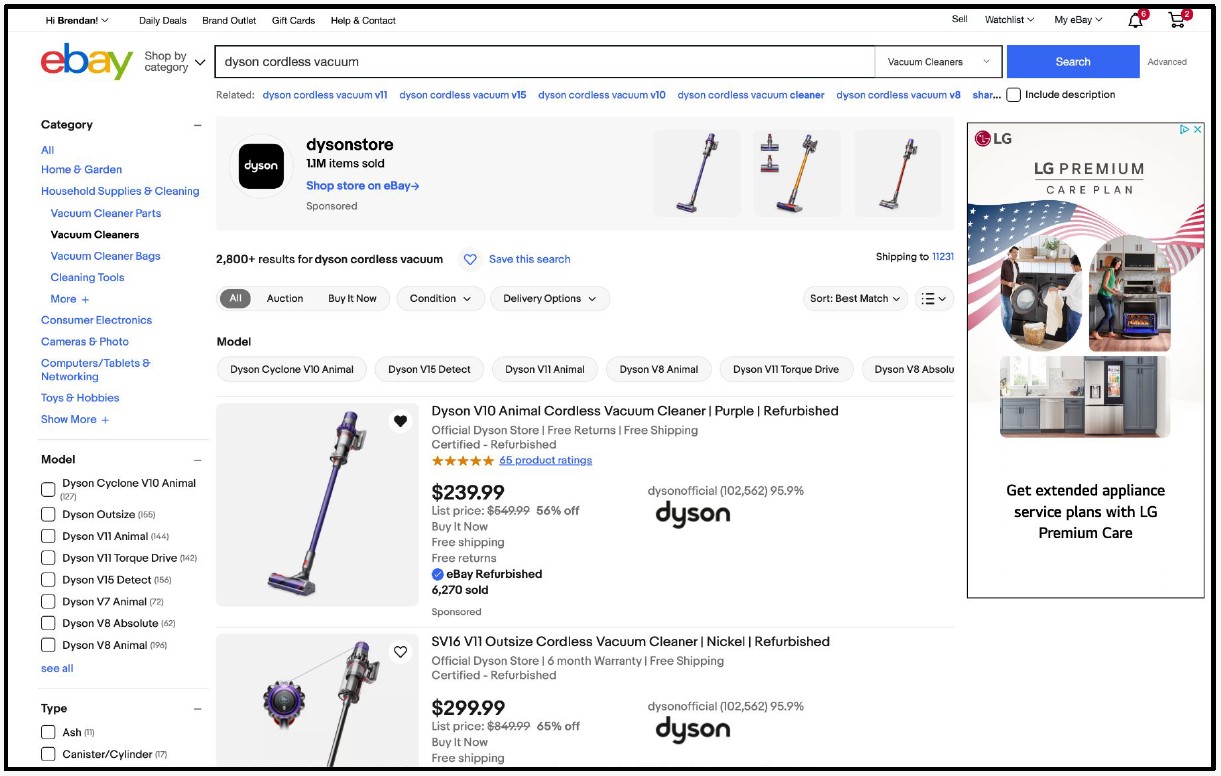
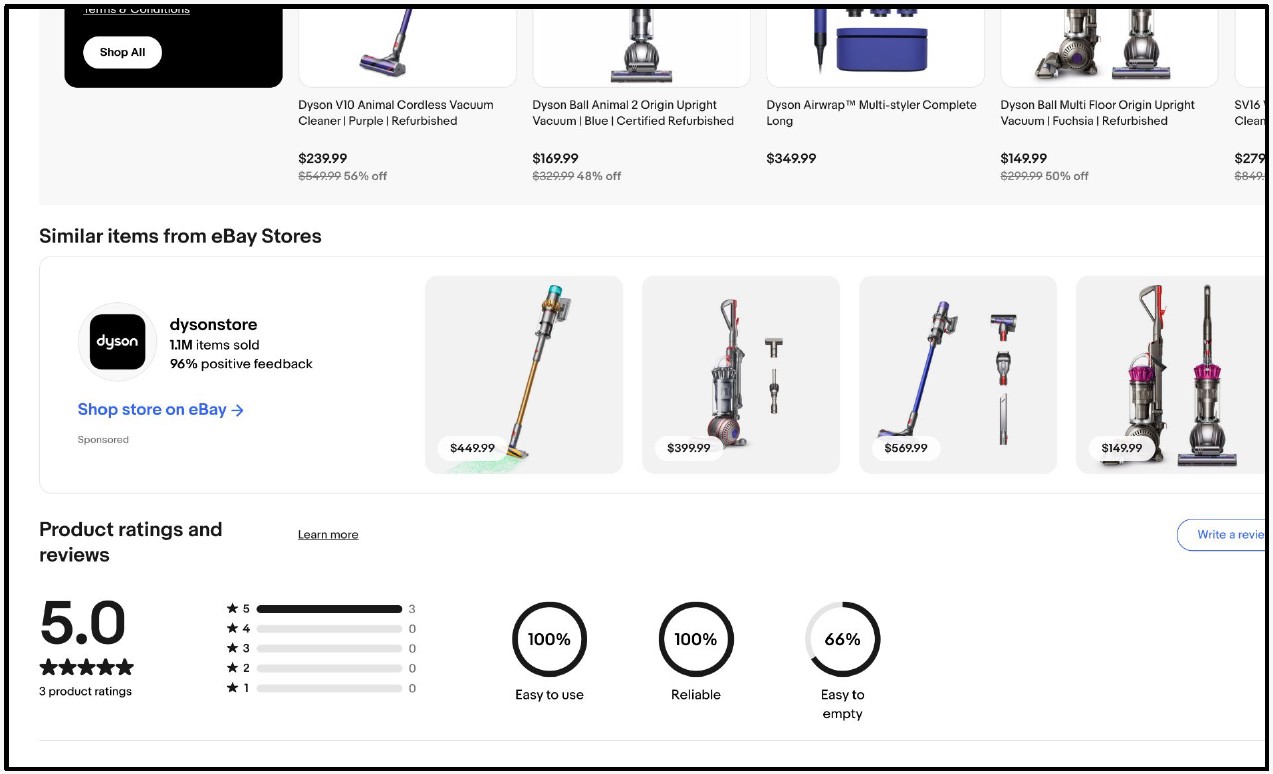
Promoted Stores ad placements
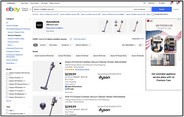
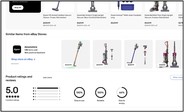
Promoted Stores ads can show in different places across eBay, including the top of search results page (1) and on view item pages (2).
Best practices
Customize your store's branding
Enhance your storefront with a store name, logo, and billboard to establish your brand identity and help build trust with buyers
Optimize your store
Create custom or automated inventory strips to feature your top-selling items and most popular categories to capture buyer attention and to help drive sales
Cost model and fee structure
Promoted Stores are based on:
- With the cost-per-click model, you only pay for clicks on your ads, up to your set daily budget
- See how much you are charged in the Campaign Performance dashboard under Ad fees
- For each campaign, the total ad fees charged for Promoted Store ads cannot exceed the daily budget you set
- The amount that you will be charged for each click is based on a second-price auction, where winning bids pay between their bid and the next highest bid
- Second-price auction example:
Promoted Stores are based on:
- All Promoted Store ad fees are charged at a listing level. Charges are determined by the sum of all cost-per-click clicks a single listing receives within a day
- Sales will be attributed within a 30-day window of a click on your ad
Example of what will be charged for a day:
Daily budget is $50
- Keyword A: Cost per click $3, gets 10 clicks ($30)
- Keyword B: Cost per click $2, gets 5 clicks ($10)
Day total: $40
The remaining $10 will not roll over to the next day, campaigns stop if daily budget is reached.
Campaign setup walkthrough
You can promote your store from the Advertising tab or the Promote your store section of the Store Tab.
In Seller Hub, go to the Advertising tab. Select Create new campaign.
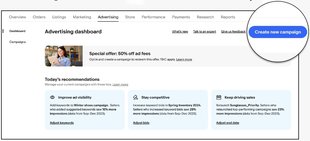
Create a new campaign
Step 1. Select Promote your store from the ad type options.
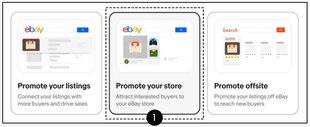
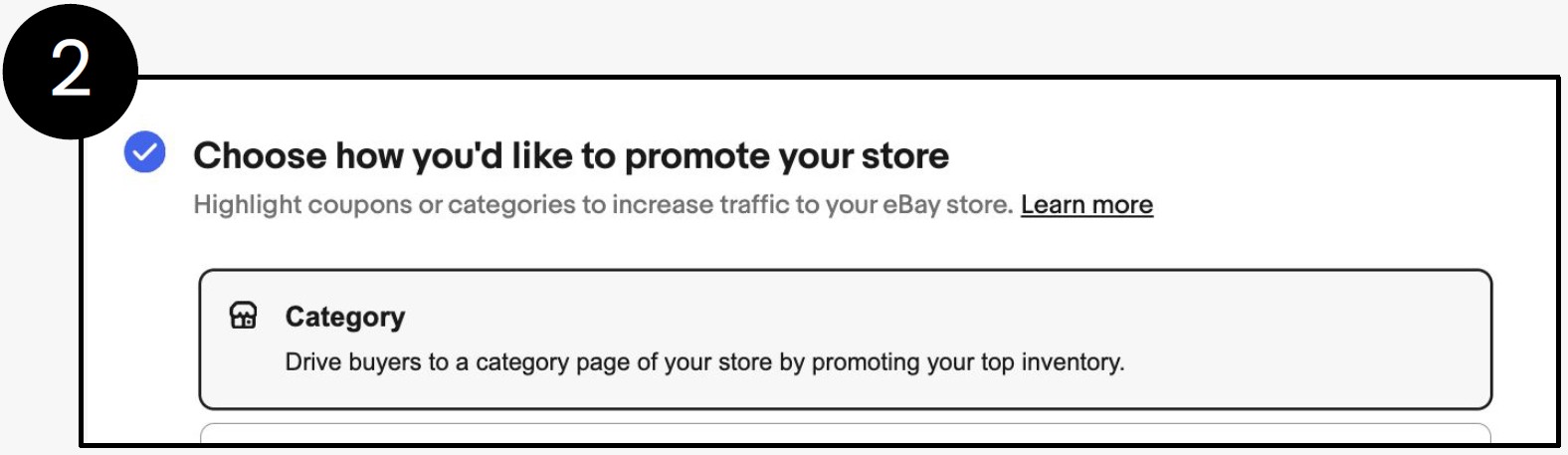
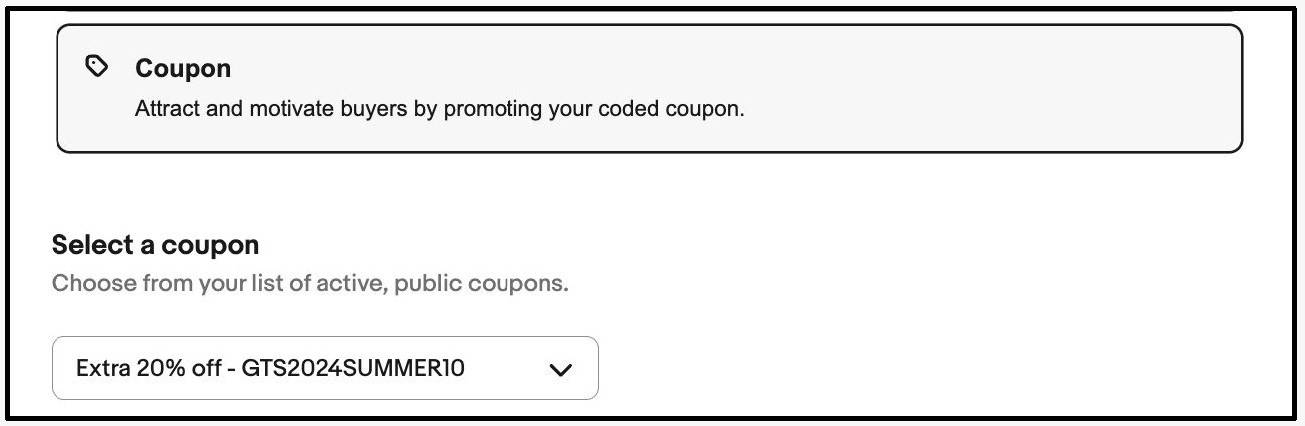
Step 2. Select Category or Coupon.
Then choose from your list of eBay categories with active Buy it Now items or the coupon code.
Note: A category must have Buy it Now items.
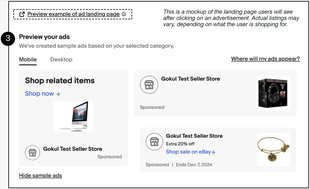
Step 3. Preview your ads.
Your actual ads may differ from the sample ads shown.
Step 4. Review keyword and sub-category targeting.
You can either launch your campaign with the default settings, which include pre-selected keyword and sub-category targeting, to proceed with default settings skip to step 7: Set your daily budget. Continue to the next step to manually target.

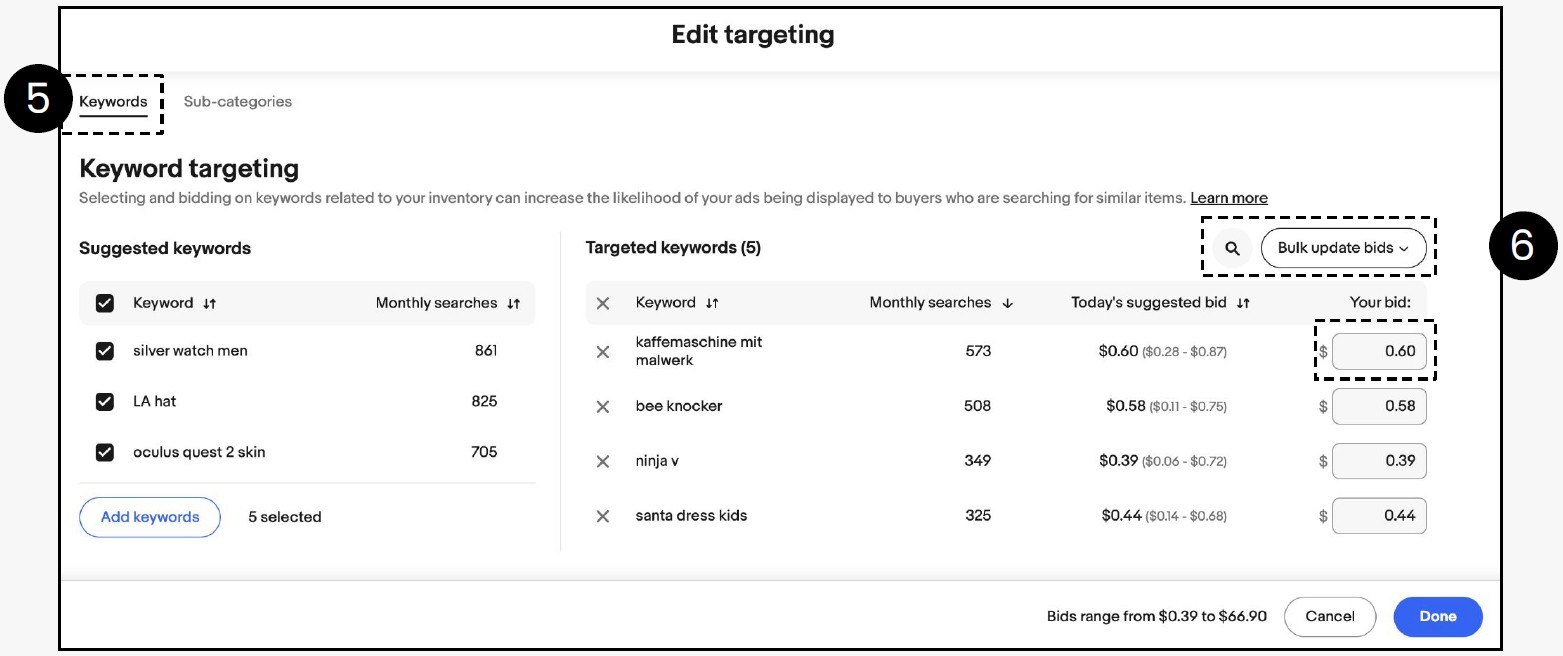
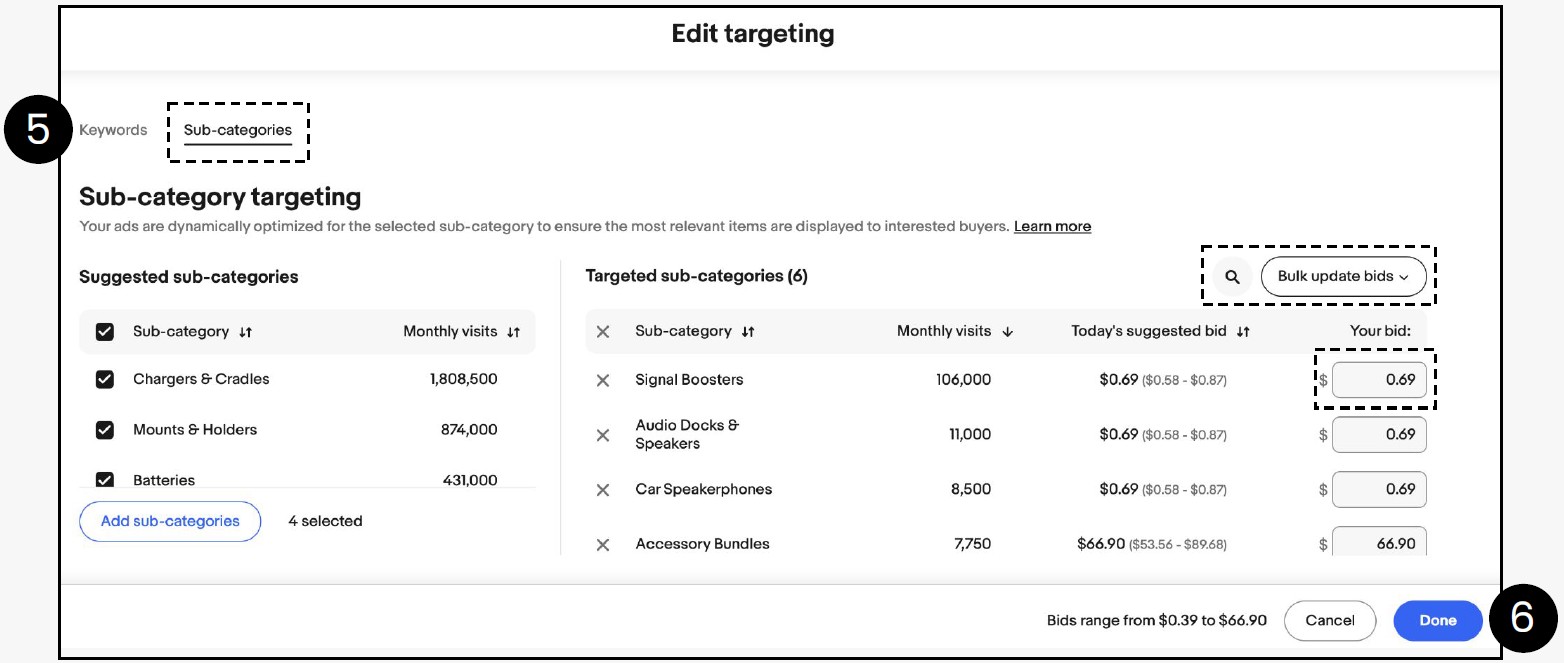
Step 5. Manually edit your ad targeting.
Edit keywords or sub-categories (for category ads) to target and bids.
Adjust keyword and sub-category targeting: To remove a keyword or sub-category, click the "X" next to it. It will move to the Suggested keywords or Suggested sub-categories on the left side of the screen.
Tip: Suggested keywords/sub-categories help reach buyers looking for items like yours.
Step 6. Adjust bids.
You can change the bid one at a time or across all listings by clicking bulk update bids.
- Apply suggested bids.
- Apply custom bids.
When finished with keywords and bids, click Done.
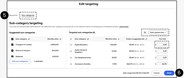
Step 7. Set your daily budget.
Step 8. Name your campaign, and set your campaign dates.
Step 9. Click Launch to activate your campaign.
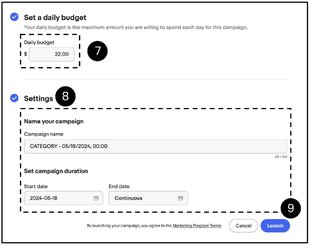
Promoted Stores tips
Create multiple Promoted Stores campaigns
Launch campaigns for different categories and coupons to attract a wider range of buyers to your store
Bid effectively
Use the suggested bids as a guide when bidding on subcategories and keywords to create competitive campaigns
Add new suggested ad targeting
New suggested keywords and sub-categories may appear on your campaign at times. Edit your ad targeting to add these to your campaign
Evaluating campaign performance
Once you have activated a campaign, you can view the performance of all of your Promoted Stores campaigns from the Advertising dashboard. The Advertising dashboard provides a comprehensive view of a seller’s advertising performance and offers personalized suggestions to enhance their campaigns’ success.
To get to the Advertising dashboard, click on the Advertising tab in Seller Hub.
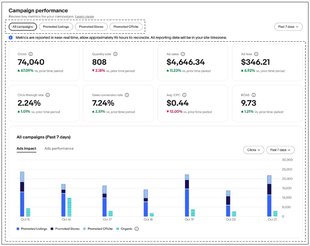
Advertising and campaign dashboards
Once you have activated a campaign, you can view the performance of all of your Promoted Listings campaigns from the Advertising dashboard on the Advertising tab in Seller Hub.
Your Campaign dashboard lets you see detailed reporting for each individual campaign. While on the Campaign dashboard you can make edits quickly within the context of your performance.
Additional resources
Seller Help
Detailed information on campaign setup and FAQs.
eBay Advertising
Get more information on how to connect to buyers with high-performing solutions that match your goals and campaign budget.
Frequently asked questions
How can eBay help me promote my store to potential buyers?
Promote your store with ads that showcase one of your categories or coupons. These eye-catching ads highlight your top, relevant inventory to buyers and can include your store name and logo.
How is Promoted Stores different from Promoted Listings?
While Promoted Listings helps buyers discover your listings, Promoted Stores drives traffic to your eBay store and helps buyers discover your brand with ads that can feature multiple listings.
Where can my ads appear?
Your ads can appear in places like the top of search results or listing pages. We are constantly looking to improve the experience of Promoted Stores so we may expand to other placements in the future.
How does eBay determine which listing images will appear in my ads?
Your top performing listing images are selected for your ads and are personalized for each buyer based on relevance to their search keywords or the specific subcategory the buyer is shopping in. The buyer's past shopping history on eBay may influence the listings that are selected.
How is it determined if my ad will be shown?
Whether or not your ad is displayed to a buyer depends on the amount you bid for each keyword/subcategory and a variety of relevance factors. These relevant factors include attributes of the eBay pages the buyer visits and the items displayed, the categories and keywords you target, their location relative to your items, account information they provide to us, and eBay marketplace shopping activity, which may include their shopping experiences with eBay.
How can I promote my store with a category?
If you select to promote your store with a category, in the dropdown menu in your Advertising dashboard you’ll see a list of all the eBay categories that have active listings in your store. Select a category you would like to highlight in your Promoted Stores ads. You can only select one category per campaign, but you can create as many campaigns as you’d like.
eBay may make occasional updates to our category structure. Your campaign will automatically adjust to reflect any category structure updates.
How can I promote my store with a coupon?
If you select to promote your store with a coupon, in the dropdown menu in your Advertising dashboard you’ll see a list of all your active, public coupons. Select a coupon you would like to highlight in your Promoted Stores ads. You can only select one coupon per campaign, but you can create as many campaigns as you’d like.
How do I set an effective bid for my keywords or sub-categories to improve my ad visibility?
The bid amount you set for each keyword or sub-category is important in determining if your ads are shown to buyers. A higher bid can improve the competitiveness of your campaign.
Here are some tips on setting your bids:
- Use the suggested bid to keep your bids competitive
- Regularly monitor performance after you launch your campaign to optimize your campaign
Suggested bids
Suggested bids are designed to help you select a competitive bid for your sub-categories and keywords. They are derived from a variety of factors, including historical bid averages for sub-categories and keywords. Using suggested bids can help increase the likelihood of your ad being shown to buyers.
Note that suggested bids can fluctuate depending on marketplace dynamics. Please be sure to regularly monitor your performance so you can continue to optimize your campaigns.
Tip: Use suggested bids to take the guesswork out of setting up your campaign.
How am I charged?
The cost for each click is based on a second price auction, which means the fee charged will be determined by factors like historical performance on eBay, your bid amount, other sellers' bids, and a reserve price (the minimum amount we've determined a click is worth, taking competition and marketplace thresholds into consideration.)
For example, if Seller A had the highest bid at $0.75 and Seller B had the second-highest bid at $0.50, and both items are of equal quality, Seller A wins the auction. The amount that Seller A will pay per click will be between $0.50 and $0.75, but will never be more than $0.75.
How do I measure the performance of my Promoted Stores campaigns?
For detailed metrics on how your campaign is performing, go to your Advertising dashboard.
From here you can monitor:
- Impressions
- Clicks
- Quantity sold
- Sales
- Ad fees
- Return on Ad Spend (ROAS)
- Store views
- New to store
You are able to download performance reports for your campaigns from the Campaign dashboard and campaign details page.
How do I become eligible for Promoted Stores?
To use Promoted Stores, you must meet certain eligibility criteria. Some of these criteria include being an Above Standard or Top Rated seller, having recent sales activity, and having an active store subscription.
If you’re not a store subscriber, you can explore the benefits of having a store and how to create one here.