





Overview of Promoted Offsite
Promoted Offsite is a cost-per-click advertising solution that can reach interested buyers beyond eBay by promoting all of your eligible inventory on external channels, like Google.
- Expand your reach: Attract interested buyers to your eBay listings with ads on popular external channels
- High performing: Position your listings directly in view of high-intent, engaged buyers actively seeking what you're selling
- Quick setup: Save time with easy-to-launch campaigns that promote all of your eligible listings in just a few clicks
Where do Promoted Offsite ad placements appear?
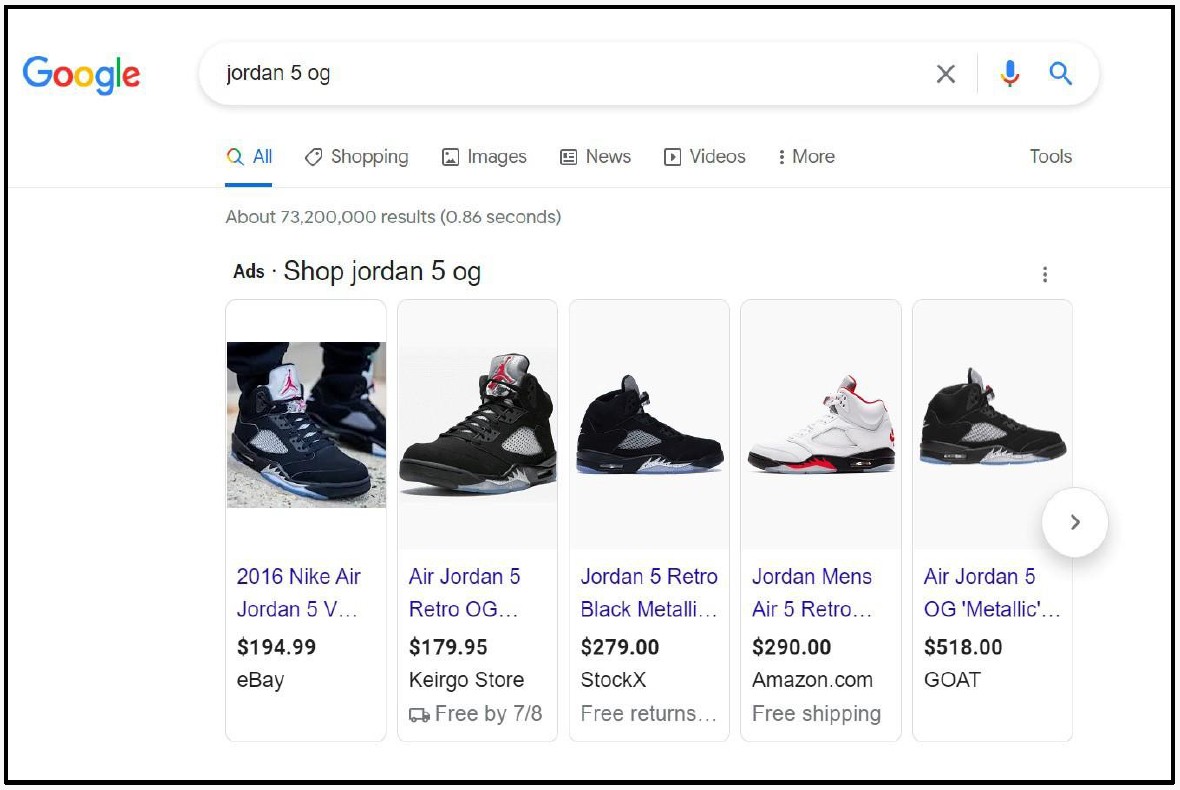
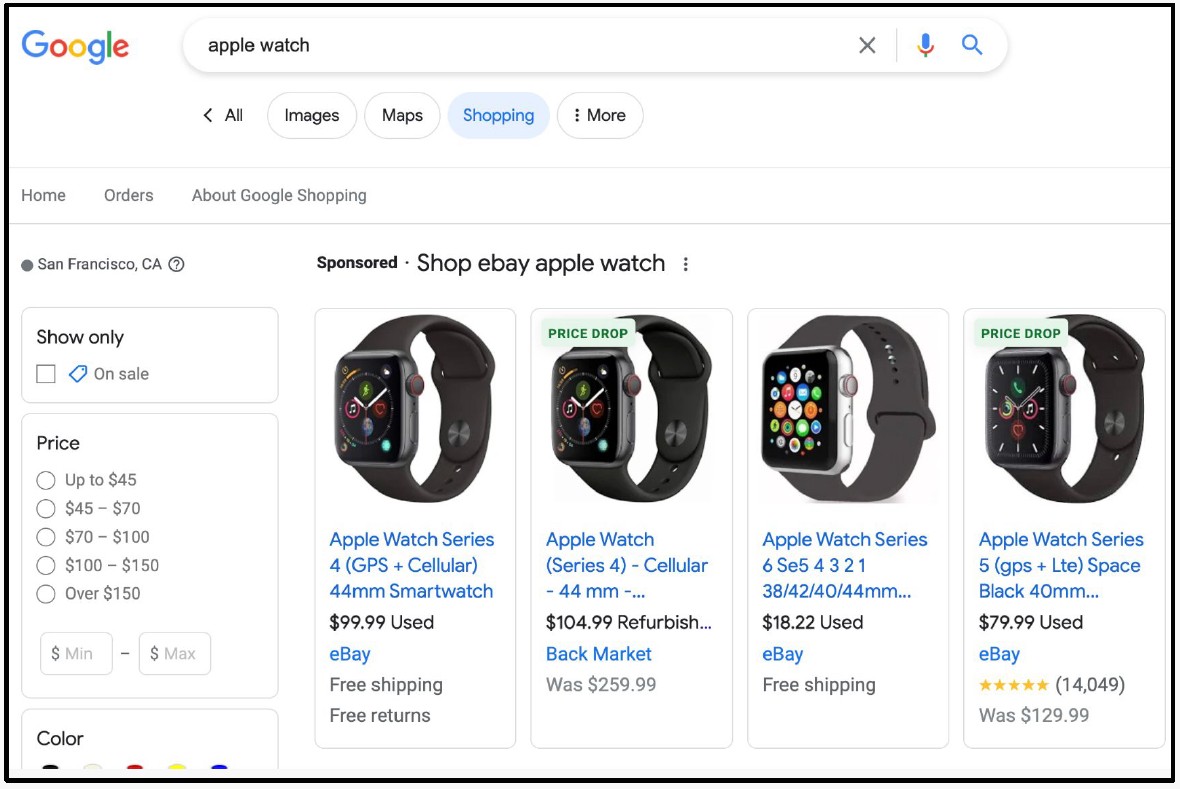
- Promoted Offsite ads can appear as an ad on external channels, like Google, e.g. in the top of Google search results (1) or in Google Shopping Ads (2)
- If a buyer clicks on your Promoted Offsite ad, they are directed to the listing page to view the item and make a purchase
Listings included in campaigns
What listings are included?
- Promoted Offsite will promote all of your eligible inventory on external channels
- Edits made to campaigns show up within 24 hours
Why use Promoted Offsite?
- eBay boasts a large and dedicated user base, with millions of daily visitors. By using Promoted Offsite, you tap into this existing brand trust, saving resources and leveraging the established buyer confidence in the eBay marketplace
- Listings promoted with a general strategy are eligible to appear on external channels, however, placement is not guaranteed
Cost model and fee structure
- Promoted Offsite ad fees are based on a dynamic cost-per-click model in which you pay for clicks on your ads up to your target budget
- eBay automatically adjusts cost-per-click for each listing on a daily basis, based on historical average cost-per-click
- Your target daily budget determines how much you could be charged per month for clicks on your ads
What is a budget?
The suggested target daily budget is a daily budget recommendation made by our algorithms based on your past performance and industry guidance.
- If your target daily budget is too low, it may impact the campaign ramp up and the number of items appearing on external platforms
- Monthly budgets are calculated at 30.4x your target daily budget
- eBay may spend up to 2x your target daily budget when there is high interest in your products
- Ad spend will never exceed your monthly budget
Getting started: campaign setup
Step 1. In Seller Hub, go to the Advertising tab.
Step 2. Select Create new campaign.
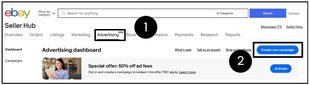
Step 3. Select Promote Offsite.
Step 4. Set your target daily budget.
Note: A budget below the suggested budget can impact performance.
Step 5. Name your campaign, and set your campaign dates.

Step 6. Click Launch to activate your campaign.

Evaluating campaign performance
Go to your Advertising dashboard
1. Scroll to Campaign section — this is where you can find all of your campaigns and easily do the following:
- Turn on/off the campaign
- Change the daily budget
2. For more campaign details, click on the campaign you are interested in.
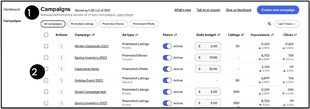
3. To generate more detailed reports, select the menu near the title.
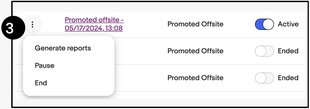
4. Make selections and click Generate.
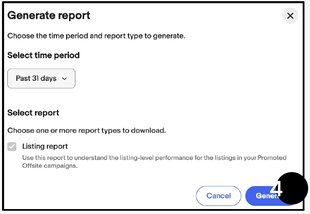
Best practices after launching the campaign
Adjust your daily budget — When the ROAS or conversion rate is high and clicks are low, try to increase your ad spend
Be patient during the learning period — It can take up to four weeks for the algorithm to gather data and optimize ad performance
Set a continuous end date — Longer campaign durations will help machine learning to optimize ad performance more efficiently
Improve your listings — Enhance listings with high clicks and low conversions with a title, images, product descriptions, etc.
Check listings without clicks — View the Listing quality report to see if the listing is banned by Google, and make adjustments according to the modification suggestions
Advertising and campaign dashboards
Once you have activated a campaign, you can view the performance of all of your Promoted Listings campaigns from the Advertising dashboard on the Advertising tab in Seller Hub.
Your Campaign dashboard lets you see detailed reporting for each individual campaign. While on the Campaign dashboard you can make edits quickly within the context of your performance.
Additional resources
Seller Help
Detailed information on campaign setup and FAQs.
eBay Advertising
Get more information on how to connect to buyers with high-performing solutions that match your goals and campaign budget.
Frequently asked questions
How can eBay help me promote my listings externally to potential buyers?
Promote your listings externally through Promoted Offsite. Attract new buyers off eBay and increase your listings’ visibility. With the ability to further promote your listings on popular external channels, you can capture a wider audience of interested buyers and drive more traffic to your listings.
Where can my ads appear?
Your listings can appear as an ad on external channels, like Google. We are constantly looking to improve the experience of Promoted Offsite so we may expand to other placements in the future.
How am I charged for clicks on my ads?
Promoted Offsite uses a dynamic cost-per-click model and automatically adjusts for each listing on a daily basis. Your target daily budget determines how much you could be charged per month for clicks on your ads.
How does eBay determine the cost-per-click for my listings?
The cost-per-click is determined using a variety of factors including historical cost-per-click averages that eBay’s external channel partners have charged for your listing, or similar listings, as well as a service fee. During the initial campaign learning phase, expect CPCs to fluctuate as the system optimizes for performance.
How do the ad fees get calculated?
For each campaign, the total ad fees charged for Promoted Offsite cannot exceed the monthly budget.
When you choose to run a campaign, we’ll calculate your monthly budget as 30.4 multiplied by your target daily budget. Over the course of your campaign, you won’t be charged more than this total budget per calendar month.
- eBay may spend above your daily budget up to two times when there's increased interest in your products, to help you capitalize on these opportunities. However, you can rest assured that your campaign won’t exceed your monthly budget
- We closely monitor the marketplace to identify fluctuations in demand for your products, so when we notice an increase in buyer interest, we may spend more than your target daily budget to help you capitalize on these opportunities
- If you end a campaign early, you may be charged up to 2x your target daily budget on a daily basis. This is because the campaign may not have had the chance to average out the budget over time
- However, you can rest assured that your average over the course of your campaign won’t exceed your monthly budget. For example, if your target daily budget is $10 for a continuous campaign, you won’t be charged more than $304 per calendar month (30.4 multiplied by your target daily budget.) Your daily spend may vary from $0 to $20, but your monthly spend won’t exceed $304
- Sales will be attributed within a 30-day window of a click on your ad
Note the following when changing your target daily budget:
- If you make a change, your daily spending limit will be based on the highest target daily budget that you chose for that day. This means that for most campaigns you will never be charged more than 2 times your highest target daily budget on that day. For example, if your daily budget is originally set to $15 but you change it to $10, you may still be charged up to $30 for that day because it uses the highest target daily budget on that particular day
- When you change your budget, your spend for the rest of the month won’t exceed your new average target daily budget multiplied by the remaining days in the month
- Ad fees are shown in your Payments tab in Seller Hub, or the transactions page in My eBay
Which listings are eligible for Promoted Offsite?
Only fixed price listings are currently eligible for Promoted Offsite. Auction listings are not eligible at this time. Some channels may require fixed or free shipping. Placement eligibility is subject to the external channels' policies and requirements.
How will my Promoted Offsite campaign affect the visibility of my Promoted Listings in external channels?
Once you've created a Promoted Offsite campaign, your listings can appear on active external channels through that campaign and will be excluded from the Promoted Listings campaigns on those channels.
Where and how can I see campaign performance?
For detailed metrics on how your campaign is performing, go to your Advertising dashboard.
From here you can monitor:
- Impressions
- Clicks
- Click-Through-Rate (CTR)
- Ad fees
- Sales
- Sales conversion rate
- Return on Ad Spend (ROAS)
- Under the Performance tab, download and review your listing quality report
How do I measure the performance of my Promoted Offsite campaign?
You can review impressions, clicks, sales, sales conversion rate, and ROAS in the Advertising dashboard.